Working Together
Meetings
Meetings get their own record: an agenda, minutes, and a list of action items — so what was discussed and what was decided don't live only in someone's memory (or a chat thread that scrolls away).
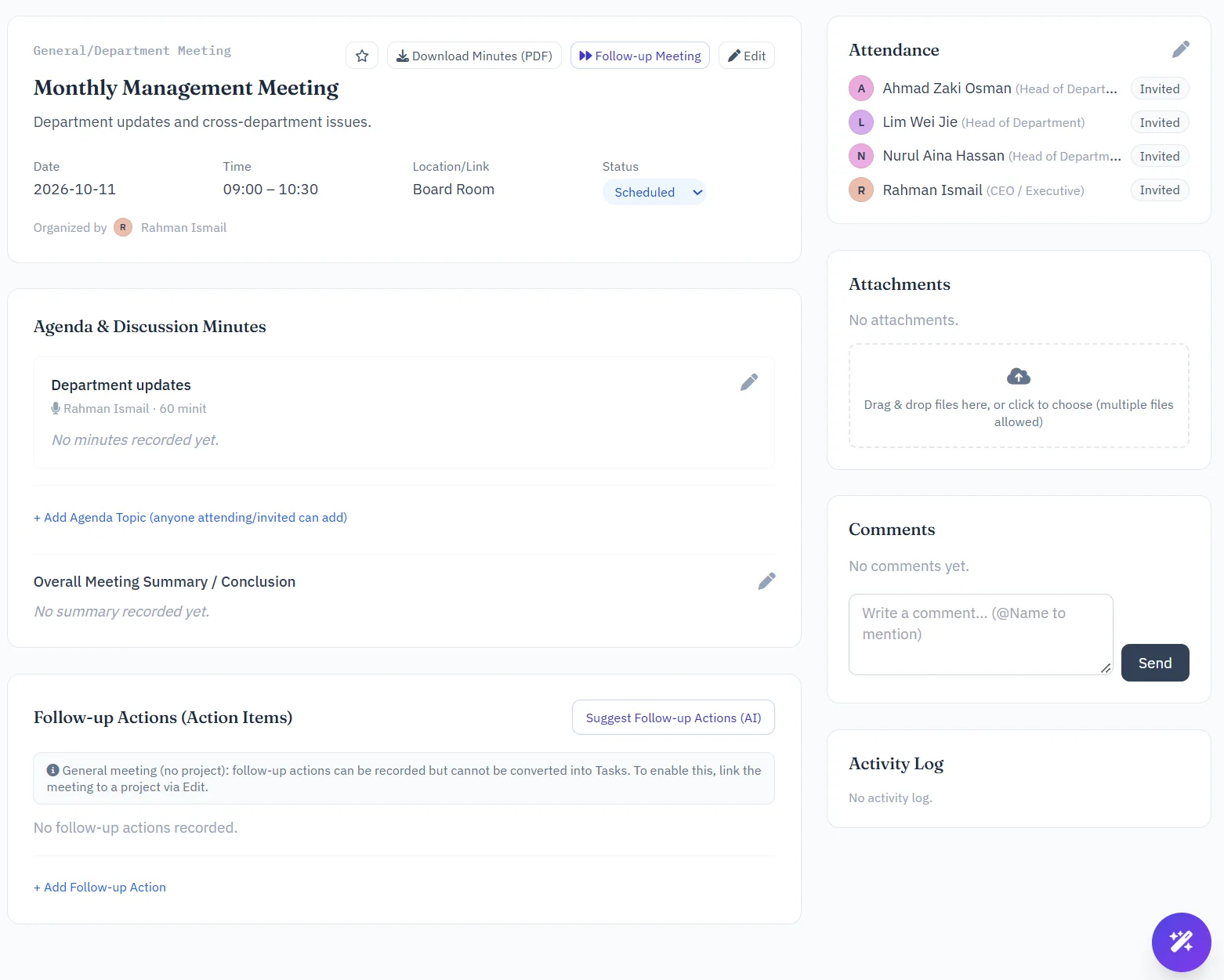
HODs, PMs and Admins schedule meetings and set the agenda. During or after the meeting, whoever is taking minutes (a permission most delivery roles have) records notes against each agenda item and adds action items as they come up. Any action item can be converted straight into a project task with one click, so follow-through doesn't require re-typing it somewhere else.
Where enabled, an AI button can read the meeting's minutes and suggest follow-up action items you may have missed — checked against what's already listed, so it won't suggest the same one twice.
Download Minutes (PDF) — on any meeting page, this button produces a ready-to-share minutes document: the meeting title, project, date, time and venue; attendance (system users and outside guests); every agenda item with its presenter, duration and discussion notes; the overall summary or conclusion; and the follow-up action items. Anyone who can view the meeting can download its minutes.
Notes
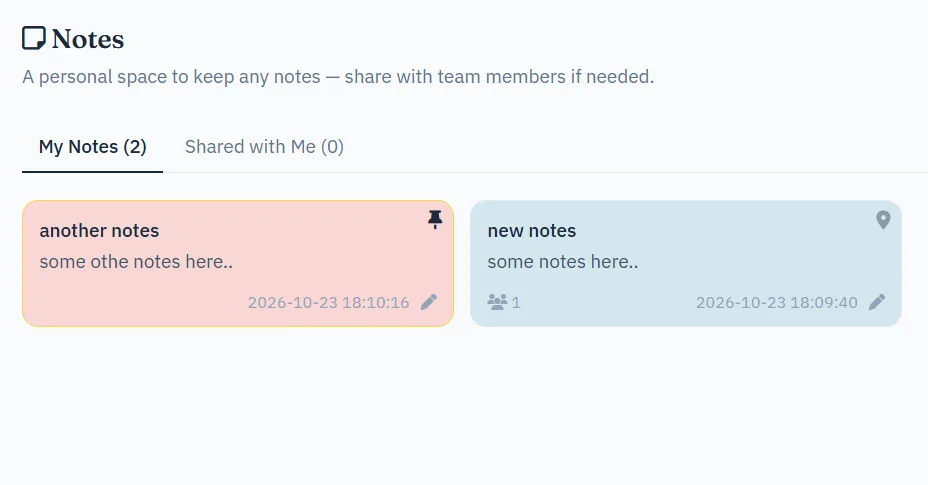
A personal notebook inside the app, for anything that doesn't belong on a task or in a meeting — a reminder, a half-formed idea, a link you don't want to lose. Notes can be shared with the team when useful, and any note can be pinned to keep it at the top of the list.
Search
Search looks across projects, tasks and meetings for a plain keyword match — fast, and unaffected by any AI setting. To ask a question in plain language instead ("what's overdue on the Koperasi project?"), use the AI Chat Assistant — the round button at the bottom-right of every page — which answers from your actual data and lists its sources so you can check them yourself.
Notifications & Favorites
The bell icon in the top bar lists recent activity that concerns you — a task assigned to you, a comment on something you own, an approval waiting on your decision — and can be marked read individually or all at once.
The star icon works the same way for anything you've favorited: click the star on any project, task or meeting to pin it there for one-click access later, without hunting back through menus.
Email Notifications
Everything the bell icon shows can optionally also land in your inbox. Two switches control this, and both need to be on for mail to actually go out: an administrator turns emailing on system-wide from Admin Settings (off by default), and each person then chooses for themselves, on their own Account page, whether they want to receive it (on by default once the system switch is on). No SMTP setup is required — it's sent directly by the server itself.
Emails are sent in the background, so saving a task or comment never waits for the mail to go out. Once a day on working days, anyone with tasks past their due date also gets a single overdue reminder listing them (bell, plus email if enabled) — nothing is sent when nothing is overdue. Administrators can switch these reminders off. Project Monitor alerts and the Monday report have their own email switch on the Account page, so you can keep those emails while turning the rest off (or the other way round).
An administrator can also email any one user their account details on demand, using the Send Details button on Admin Users.
Attachments
Files can be attached to projects, tasks, meetings, bug report and notes directly from each item's page. Anything you've uploaded can be previewed or downloaded again from the same attachments list, and removed if it's no longer needed.
When the chat assistant runs on Zeta AI, project documents — including spreadsheets, presentations, scanned PDFs and images — can also be sent to Zetty's knowledge base — right after uploading you'll be asked whether to send it, and each file shows its status.