AI Features
AI Chat Assistant
The round button at the bottom-right of every page opens a chat that answers questions, gives you quick status updates, and can set up new work for you — without leaving the page you're on.
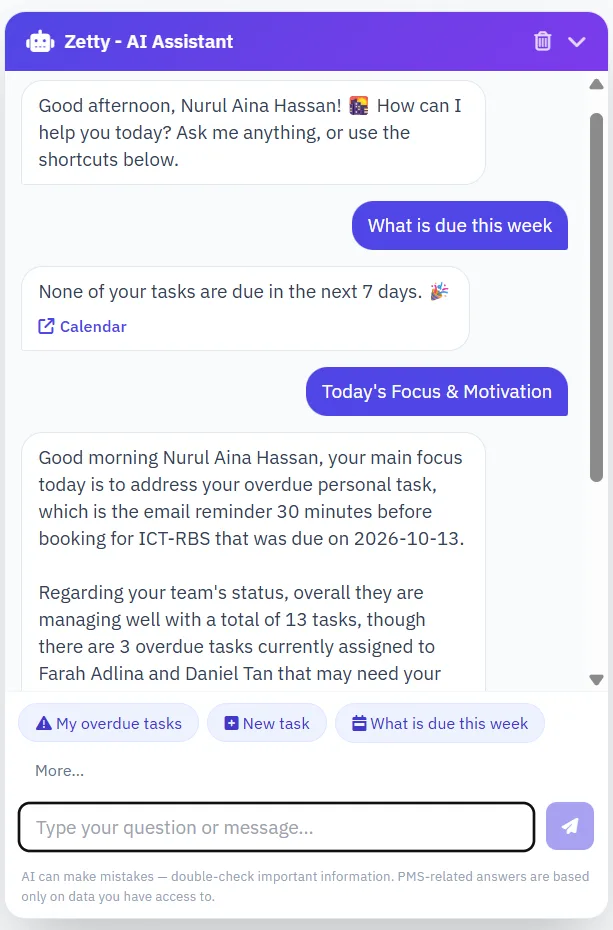
Asking questions
Ask anything in plain language — general questions, or questions about your own projects, tasks and meetings. Answers about your work are drawn only from data you are allowed to see, with the sources listed underneath (tap "Show sources"). Opened from a project, task or meeting page, the chat shows Asking about: <project> above the message box — your question then uses that project's data and, when the assistant runs on Zeta AI, the project's documents sent to Zetty. Click ✕ to ask a general question instead, or Ask about this project to switch back. Your conversation is saved to your own account — the same in every tab and page, and never shown to anyone else who signs in on the same browser; a small date label separates the messages of each day (Today, Yesterday, or the date for earlier days, like a messaging app); the bin icon starts a fresh conversation, and the down-arrow button only minimises the chat. The first time you open it after signing in, it greets you by name. You don't have to wait on the page for an answer: move to another page or tab while it's being written and it keeps going — the chat button pulses while it works and shows a red dot when the answer is ready.
Floating or docked
The chat can be shown two ways, using the button in its title bar:
- Floating (default) — a small window at the bottom-right, on top of the page.
- Docked on the right () — a full-height panel on the right; the page moves left so nothing is hidden behind the chat. Handy for working on a project while you chat. Click to make it floating again.
Your choice is remembered: move to another page and the chat stays open, in the same view and at the same place in the conversation. Minimise it and it stays minimised until you open it again. On phones and small screens the chat always floats.
Shortcut chips & "More…"
Above the message box, three shortcuts are picked for you each day — the relevant ones first (the current project's status on a project page, your overdue tasks if you have any, the current project's risk, what's due this week), the rest at random. More… lists everything: quick answers such as Project status, Project risk, My project issues (from the Project Monitor), What is due this week, My overdue tasks and Who is overloaded (team leads), plus an "I want to…" list that points you straight to the right page. Quick answers come directly from your data, so they are instant and don't use AI. You only see what your role allows.
AI shortcuts on the right page: on a project page you get ✨ Suggest tasks, on a project's Test Cases page ✨ Suggest test cases, and on a meeting page (if you can take its minutes) ✨ Suggest follow-up actions — see Suggestions in the chat.
Module shortcuts: shortcuts for HR requests appear only on HR pages, and Helpdesk ticket shortcuts only in the Helpdesk module — so the list stays relevant to where you are. Typed questions and requests (for example "Book the office car" or "any tickets past SLA?") still work on any page.
Asking about project risk
Tap Project risk, or just ask — for example "Which projects are at risk?", "What's the risk on this project?" or "Risk of EPROC?" (using a project code). Asked in general, the assistant lists your active projects from the riskiest down, each with its risk level (High, Medium or Low) and why — overdue tasks, delayed milestones, how far behind schedule it is, days left. This list is calculated by the system from your real data, so it is instant and doesn't use AI. Pick a project (or ask from a project page) and the assistant writes a short project summary, risk analysis and recommended actions — the same analysis as the Schedule Risk Forecast card on the project's Summary page, with a link to open it. The risk level itself always comes from the system, never from the AI. Asking from the chat never changes the analysis saved on the project's Summary page. Questions about how to reduce risk are answered by the AI as normal.
Suggestions in the chat — tasks, follow-up actions, test cases
The assistant can draft work for you and let you create it in one go — the same AI suggestions as the buttons on each page:
- Tasks for a project — tap ✨ Suggest tasks on a project page, or ask "Suggest tasks for EPROC" / "Break down the project into tasks". You get suggested tasks with phase, dates and priority; choose who each is assigned to (you, the PM or the project's Team List).
- Follow-up actions for a meeting — tap ✨ Suggest follow-up actions on a meeting page, or ask "Suggest follow-up actions". The suggestions come from the meeting's minutes; assign each to one of the attendees.
- Test cases for a project — tap ✨ Suggest test cases on the project's Test Cases page, or ask "Suggest test cases for EPROC". Each suggestion shows its module, expected result and priority.
Tick the ones you want and click the create button — you get a confirmation with a link to the project or meeting. Asked from another page, the assistant first asks you to pick the project or meeting. Task and test case suggestions need the project to have a description, and follow-up actions need the meeting's minutes. Nothing is created until you click, and the same permission checks as the page buttons apply.
Creating a project or task by chatting
Type something like "I have a new project to start — a housing project", or tap New project / New task. The assistant asks only what it still needs — team members and target date (e.g. "amin and zaifah, done in 2 months"), the objective, the assignee or due date — and suggests milestones or a description and checklist. If a name matches more than one person, it asks you to pick. You then see a summary card: type any change ("add ali", "finish end of December", "high priority"), press Confirm & save, or Cancel (or type "cancel") — nothing is saved until you confirm. After a new project is created, the assistant offers to suggest its first tasks, which you can tick and assign right in the chat.
Safeguards: the assistant can only create projects, tasks and milestones — it has no way to edit or delete anything. Every save uses the same permission checks as the normal forms (for example, a Junior Developer can only assign tasks to themselves), and items created from the chat are marked as such in the activity log.
Making an HR request or booking by chatting
Where HR Requests is turned on, you can send a request straight from the chat — type something like "Book the company car" or "Book kereta pejabat esok 9 pagi sampai 12 tengah hari ke Putrajaya". The assistant matches the request types your company has set up (it never assumes a type that doesn't exist), then asks only for what that type still needs — start and end date & time, destination, item, quantity or amount, and the purpose. Dates and times can be written naturally ("tomorrow 9am", "2.30 petang", "12 noon").
Before anything is sent you get a summary card showing the details, who will approve it, and any other requests for the same time (for example, someone who has already booked the car). Type a change ("start at 3pm") or tap Confirm & save. The request then follows the normal approval chain, exactly as if you had used the form. Request types that require an attachment still need the form.
Where Ask Data (the chat's Data mode) is turned on, you can also ask who has booked or is away at a given time — e.g. "Who booked the office car this week?", "Who is on leave on 16 December?". Only dated requests that are pending or approved are included, and only names and times are shown — the same as the HR booking calendar.
On HR pages the shortcuts change to one button per request type (Request Office Car, …) plus My request status.
While any AI feature is working, a small banner at the bottom-right shows which AI is answering (Google Gemini or Zeta AI / Zetty) and how many seconds have passed — stay on the page until it finishes.
Zetty Knowledge Base
When the chat assistant runs on Zeta AI (Zetty), it can also answer from your own documents.
Project documents: upload a file to a project as usual. If it is one of the supported types — documents (.pdf, .docx, .txt, .md), spreadsheets (.xlsx), presentations (.pptx) and images (.jpg, .png, .webp) — you're asked whether to send it to Zetty; every such attachment also has a small robot icon (hover it: "Send to Zetty") and a status badge — queued, processing, ✓ In Zetty, or failed with the reason. The upload box shows the formats and size limit currently allowed, which are set on the Zeta AI server. Anyone who can upload attachments to the project can send them. A project's documents are only used when chatting about that project.
General knowledge: administrators can upload company-wide documents — policies, SOPs, general guides — from Admin AI Settings General Knowledge (Zetty). These are used for every project.
Scanned documents and images: Zeta AI reads scanned PDFs and pictures (for example a photographed form or a scanned letter) using text recognition (OCR). While it works, the badge shows its progress, such as OCR 40/120 pages; a long scan can take a few minutes, and you can carry on working in the meantime. The upload box tells you the most scanned pages accepted per file. If your server has OCR switched off, images aren't offered and scanned PDFs can't be read.
Sending a file with the same name again replaces the older version in Zetty. Deleting an attachment in Zeta Taskflo+ does not remove its copy from Zetty — that is done by staff on the Zeta server's admin page. None of this appears when the chat uses Google Gemini.
Document Converter
Turn meeting minutes, a brief or a specification into a task list by chatting with the Document Converter (AI) page — even when the document is a scan or a photo.
Reading documents with Zeta AI
When an administrator sets the Document Converter to use Zeta AI (Admin › AI Settings), click the paperclip and attach the original file: a PDF (including scanned PDFs), Word (.docx), Excel (.xlsx), PowerPoint (.pptx), .txt, .md, or an image (JPG, PNG, WebP) of up to 25 MB. Anything you type alongside the file is treated as an extra instruction — for example "IT Unit tasks only". You can also paste text without a file. Press Send; "Reading the document…" is shown while Zeta AI reads it, usually 15–40 seconds.
The result is a card with a short summary of the document and the suggested tasks:
- Edit before creating — change the title, start date, due date and priority of any task, and untick anything you don't need.
- Assignees are matched from the names written in the document; when a name can't be matched (for example a unit such as "IT Unit"), it's shown as "In the document: …" so you can choose the person yourself.
- Tasks highlighted in yellow are ones the AI is unsure about (for example unclear handwriting) — read the note and open Original excerpt to see the exact text and page it came from.
- Sub-tasks are shown under their parent ("Sub-task of: …") and are created as real sub-tasks, as long as the parent is ticked too.
- If the document names milestones, tasks are grouped by them and each becomes a milestone in the project.
Task titles are kept short — the full wording from the document goes into the task's description.
Choosing the project — or creating a new one
If the document's file name, title or summary mentions an existing project's code or full name, that project is selected automatically ("Selected automatically — this project matches the document"). If no project matches, the card asks "No existing project matches this document. Create a new project?" — click Yes, create a new project or Choose an existing project. You can also pick ➕ New project from this document… from the project list at any time (only if you're allowed to create projects).
For a new project, check the project name (taken from the document's title), the optional code (generated if left empty) and the start and end dates (filled from the earliest and latest task dates), then click Create Selected Tasks. The project is created with you as the PM, every task assignee added to the Team List, the original document saved as a project attachment, and the document summary as its description. In any project, a milestone without a due date gets the due date of its latest task.
Otherwise, pick the target project and click Create Selected Tasks. The document is read for that request only — it isn't added to the knowledge base (it's kept only when you create a new project, as an attachment). If reading fails, click Retry; for PDF, Word and text files the page may automatically retry with the text method instead. Old Office formats (.doc, .xls, .ppt) need to be saved in the newer format first.
Text method
When the Document Converter uses Google Gemini, attach a .txt, .md, .pdf or .docx file or paste the text. If anything is unclear, the AI asks a few follow-up questions — answer them in one message, or click Skip. Suggested tasks are grouped by phase; each phase becomes a milestone in the project. Scanned (image-only) PDFs and password-protected files can't be read in this mode — paste the text instead.
The conversation is not saved — reloading the page or clicking Start over clears it. Avoid sending passwords or sensitive personal data.
All AI Features
Every AI feature in Zeta Taskflo+ is optional, can be switched off individually by an administrator, and always answers in your current interface language. None of them act on their own — each one only runs when you click the button for it. Every AI button and result card is marked with ✨, so you can tell at a glance what uses AI.
Task Suggestions
Drafts a description and checklist for a task from a short prompt you give it — a starting point to refine, not a final answer.
AI Chat Assistant
Answers plain-language questions about your own work with sources, gives quick status answers, and creates projects and tasks through a guided conversation. See AI Chat Assistant.
Today's Focus & Motivation
A one-click, on-demand summary of what to prioritize today and how the team is tracking.
Project Task Suggestions
Suggests a list of tasks straight from a project's description, which can be created in bulk with one click.
Schedule Risk Forecast
Estimates the risk of a project slipping its deadline based on current progress, and recommends what to do about it. Also available in the chat — see Asking about project risk.
Test Case Suggestions
Drafts test cases from a project's description and existing tasks, checked against test cases that already exist so it won't duplicate them.
Document Converter
A chat page where you attach a document — including scanned PDFs, photos, Excel and PowerPoint — or paste text, and get suggested tasks with dates, priorities, assignees and sub-tasks to review. See Document Converter.
Meeting Action Suggestions
Reads a meeting's minutes and suggests follow-up action items, checked against what's already been logged.
If a feature is switched off, or the system's AI key hasn't been configured yet, its button and card simply don't appear — there's no broken state to run into. Administrators manage all of this from Admin AI Settings, including which AI — Google Gemini or Zeta AI — powers each feature.