Helpdesk (Add-on)
Helpdesk Overview
Helpdesk gives each of your clients a branded support portal of their own, and brings every request and incident they raise into one Helpdesk Center inside Zeta Taskflo+ — where your team manages it, turns it into tasks and keeps the client updated.
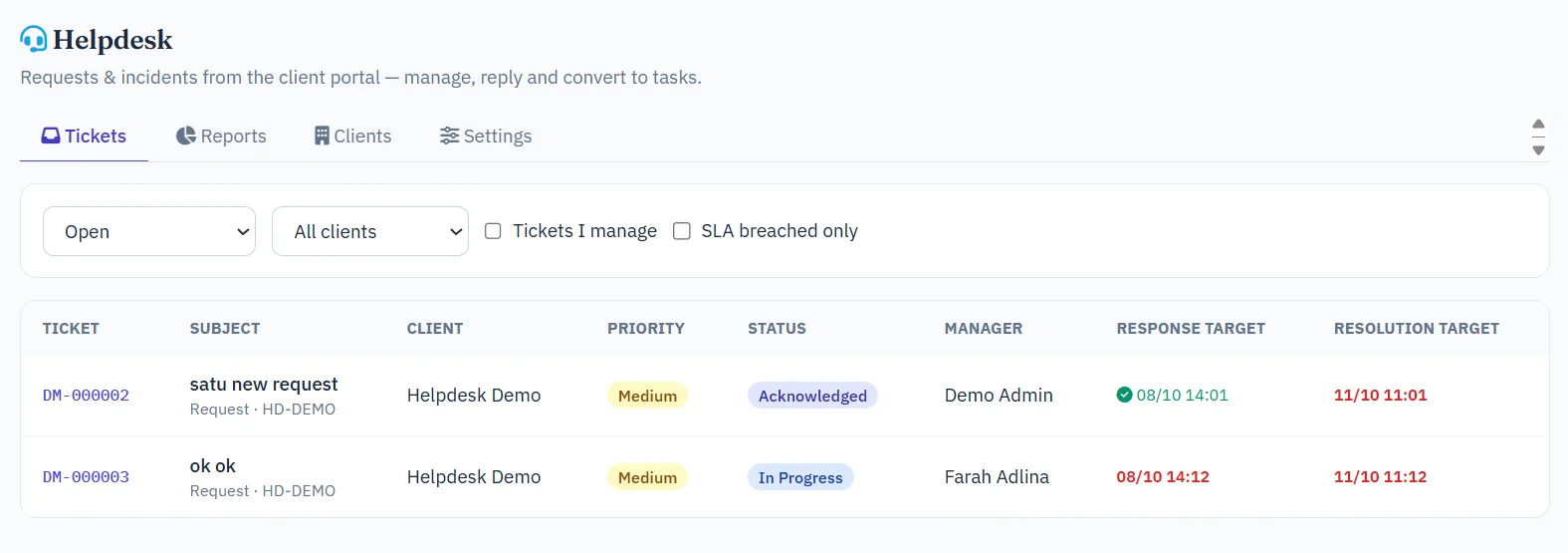
Helpdesk is an add-on: it is included only in installations that subscribe to it. When it is installed, a Helpdesk item appears in the left menu for staff who have Helpdesk permissions.
The flow in one line: client raises a ticket in their portal → it lands in the Helpdesk Center → the client's manager replies or converts it into a task for the right person → the task's progress updates the ticket → the client confirms it is resolved.
Helpdesk Center
The internal side: every ticket from every client portal, filtered to what you are allowed to see.
The ticket list can be filtered by status (Open, Resolved / Closed, All), by client, to Tickets I manage, and to tickets whose SLA has been breached. Each row shows the priority, status, manager and the response / resolution targets — red when overdue, amber when close.
Open a ticket to work on it:
- Reply to client — the reply is emailed to the client and shown in their portal. You can change the ticket status in the same step (for example to Waiting on Client, which pauses the SLA clock).
- Internal note — visible to staff only (highlighted in amber). It is never shown in the portal or included in any email to the client.
- Manage ticket — change the ticket manager or priority. A new manager is notified and the ticket moves onto their Dashboard.
- Convert to task — creates a task in the ticket's project, assigned to the person you choose, and links it to the ticket. You can also link an existing task from the same project. Linked tasks show a "From Helpdesk ticket" panel on the task page.
- Create Bug Report — copies the ticket into a new Bug Report (the Bug Reports module stays separate), for staff with bug report permission.
Automatic status: once a ticket has linked tasks, its status follows them — when any task is being worked on the ticket becomes In Progress, and when all linked tasks are Done the ticket becomes Resolved and the client is emailed. Waiting on Client and Closed are never changed automatically.
Your Dashboard shows a My Helpdesk tickets card listing the open tickets you manage, and new tickets, client replies and SLA warnings arrive in your notification bell.
Asking the AI assistant about tickets
In the Helpdesk module, the AI chat assistant shows three shortcuts: Open helpdesk tickets (most critical and closest SLA deadline first), Tickets past SLA and Helpdesk summary this week (new, resolved, still open, past SLA, and open tickets by client). You can also simply type a question on any page — "any tickets past SLA?", "how many tickets this week?". These answers come straight from the ticket data, instantly and without AI, and only cover the tickets you are allowed to see in the Helpdesk Center.
Where Ask Data (the chat's Data mode) is turned on, you can ask freer questions such as "open tickets by client" or "average CSAT this month by client". Ticket descriptions, messages, internal notes and attachments are never available to the AI.
Clients, Contracts & Portal Users
Set up each client once: who they are, how their portal looks, which projects they can raise tickets for, and who on your team looks after them.
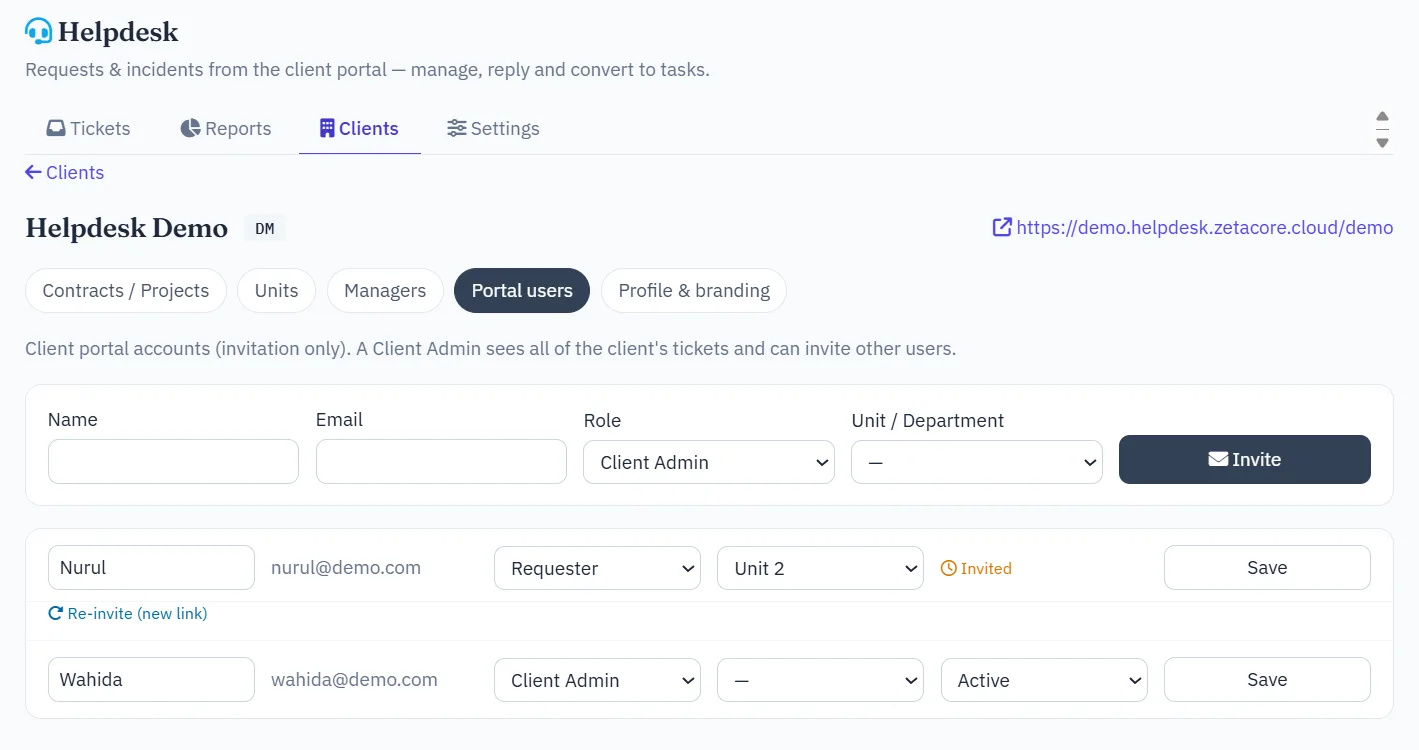
- Profile & branding — client name, portal slug (the client's address:
helpdesk.your-domain/slug), ticket code (ticket numbers look likeABC-000123), portal name, logo, brand colour and the email sender name the client sees. Staff name shown to client can be the real name, a per-staff alias (set in Helpdesk Settings) or a team name only. You can also choose whether the client sees SLA targets. - Contracts / Projects — each contract links the client to one project and decides which ticket types are open (Request, Incident, Question, Change Request — e.g. a maintenance contract may offer only Incident and Question), which SLA plan applies, and optionally which of the client's units may use it. One client can have several contracts.
- Units — the client's own departments or sub-companies. Portal users belong to a unit, and contracts can be limited to particular units.
- Managers — staff who look after the client, either for all of the client's projects or for one project. Managers are notified of new tickets; if a client has no manager, the project's PM is notified instead.
- Portal users — invitation only. Invite the client's first Client Admin; they can then invite their own colleagues. After inviting, a Copy button shows the invitation link — useful if the email does not arrive. Users still pending can be re-invited to get a fresh link.
SLA, Business Hours & Holidays
Response and resolution targets per priority, measured the way your contract says.
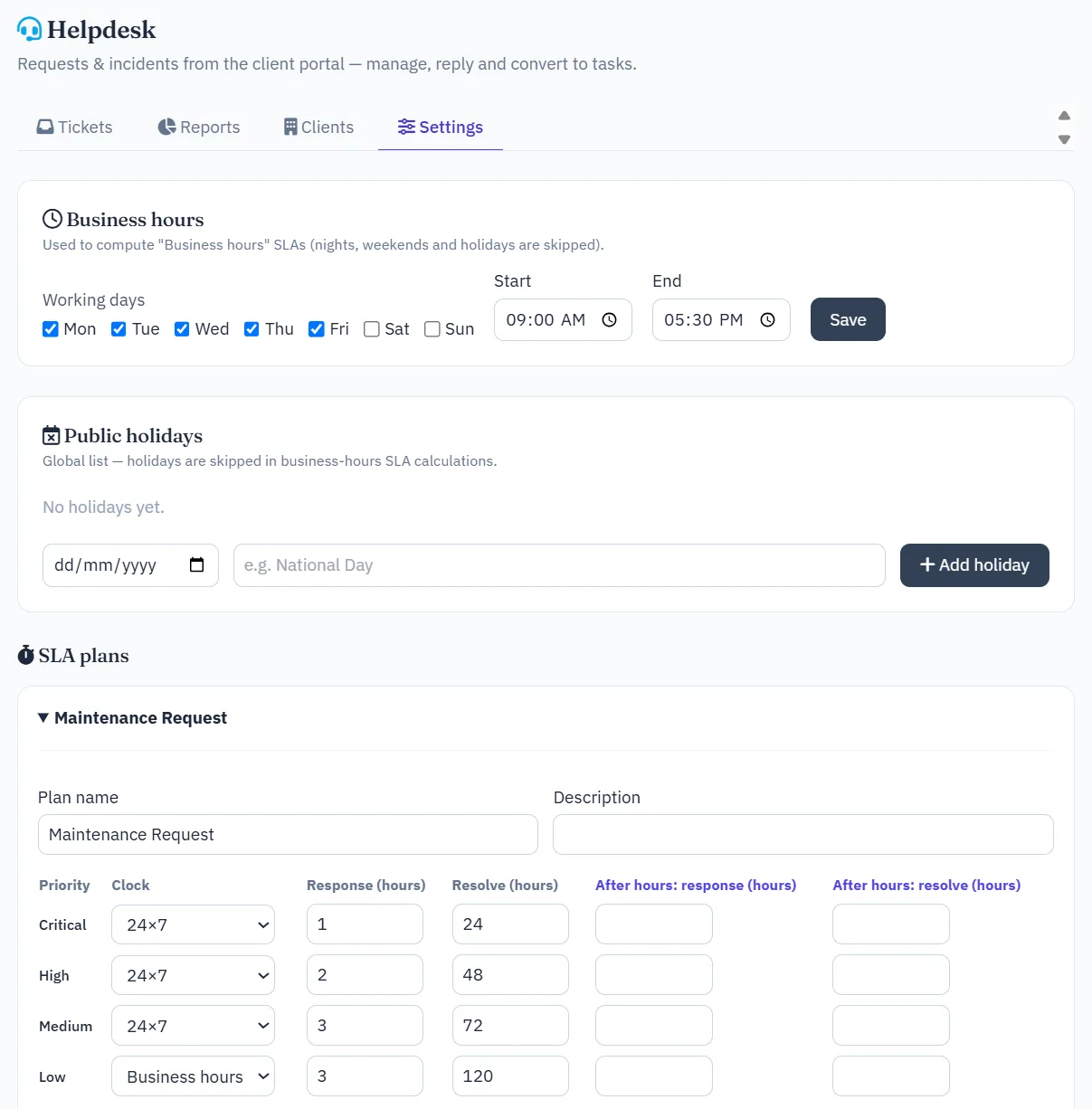
In Helpdesk Settings you set the working days and hours, the public holiday list, and one or more SLA plans. For each priority (Critical, High, Medium, Low) a plan sets a response target and a resolution target, in hours, counted either in business hours (nights, weekends and holidays skipped) or 24×7. Optional after-hours targets apply to tickets raised outside business hours.
- At 75% of a target, the ticket's managers get a warning.
- When a target passes, managers are notified; a missed resolution target is also escalated to the Head of Department of the ticket's project.
- Waiting on Client pauses the clock — the targets move forward by the paused time.
- Resolved tickets with no client response are closed automatically after 5 working days.
These checks run automatically every few minutes while the system is in use; administrators can also schedule cron/modules.php every 5 minutes for exact timing overnight.
Helpdesk Reports & CSAT
Monthly or quarterly service reports for your clients - on screen, as a print-ready PDF, or as CSV for Excel.
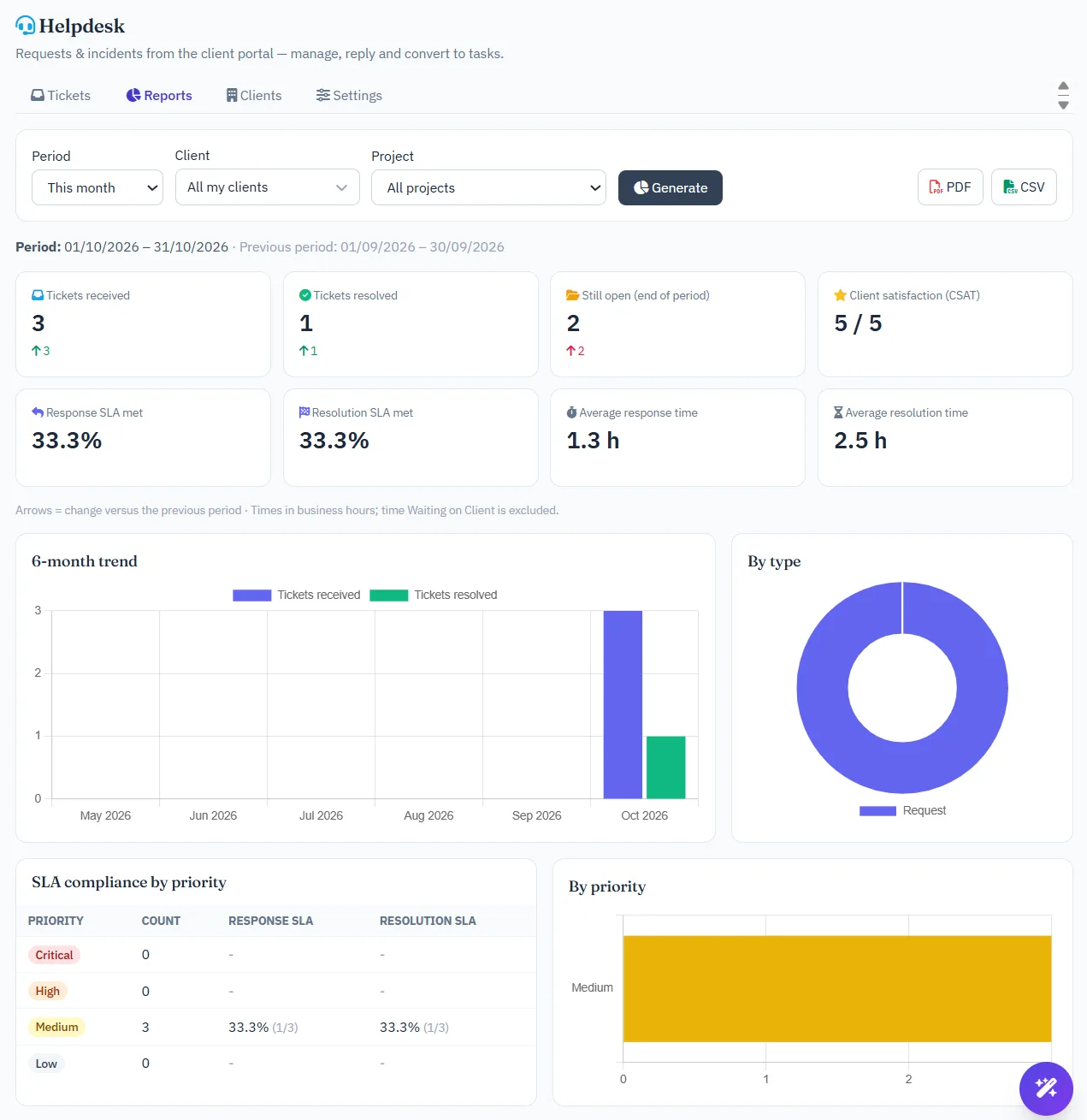
Open Helpdesk Reports, choose a period (this/last month, this/last quarter or a custom range) and, if you look after several clients, one, several or all of them, plus an optional project or unit. Every figure is compared with the previous period of the same length.
- Summary - tickets received, resolved, closed and still open; response and resolution SLA compliance; average and median response and resolution times (in business hours, with time Waiting on Client excluded); reopen rate; client satisfaction (CSAT).
- Breakdowns - a 6-month trend, and tickets by type, priority, project and client unit; SLA compliance by priority.
- Service quality - tickets closed after client confirmation, closed automatically or closed by your team; CSAT ratings; age of open tickets.
- Lists - tickets that breached SLA, and every ticket in the period with its response and resolution times.
- Internal only - client comparison and manager workload (never included in the client portal).
PDF uses your company branding (Admin Report Template colour and footer). You only see tickets within your Helpdesk view scope.
Client Admins can view their own organisation's report in the portal (branded with their portal) when Client Admin can view reports in the portal is ticked in the client's profile.
CSAT: when a client confirms a resolved ticket, they can rate the service from 1 to 5 stars and leave a comment. The rating appears on the ticket and in the reports.
The Client Portal
What your clients see — under their own brand, with short tips on every page so they rarely need help.
- Requester — submits tickets for the projects open to their unit, and sees, replies to and follows only their own tickets.
- Client Admin — everything a Requester can do, plus sees all of the organisation's tickets and manages the organisation's portal users (invite, role, unit, deactivate).
A client opens a ticket by choosing the project, the type and the priority, describing the problem and attaching files. They are emailed when the ticket is received, when you reply and when its status changes. When a ticket is Resolved they can confirm it (it closes) or reopen it. Portal users can switch between Bahasa Malaysia and English.
Helpdesk Setup & Permissions
A one-time setup by your administrator.
- Create a subdomain for the portal (e.g.
helpdesk.your-domain.com) pointing to the same installation folder as Zeta Taskflo+, with SSL. - Add
HELPDESK_URL=https://helpdesk.your-domain.comto the.envfile. - If tables were not created during the update, run Admin System Update Run migrations.
- In Helpdesk Settings set business hours, holidays and SLA plans; then create your first client.
Permissions (Admin Roles → Helpdesk): Ticket view scope — all tickets, or tickets I manage (as client or ticket manager, the project's PM, or an assignee of a linked task); Reply — reply, internal notes and status; Convert to task; Manage clients — clients, contracts and Helpdesk settings.