Daily Work
Dashboard
Your home screen the moment you sign in. What it shows adapts to your role — an executive overview for CEOs, a department summary for HODs, a delivery snapshot for PMs, and a personal to-do view for everyone else.
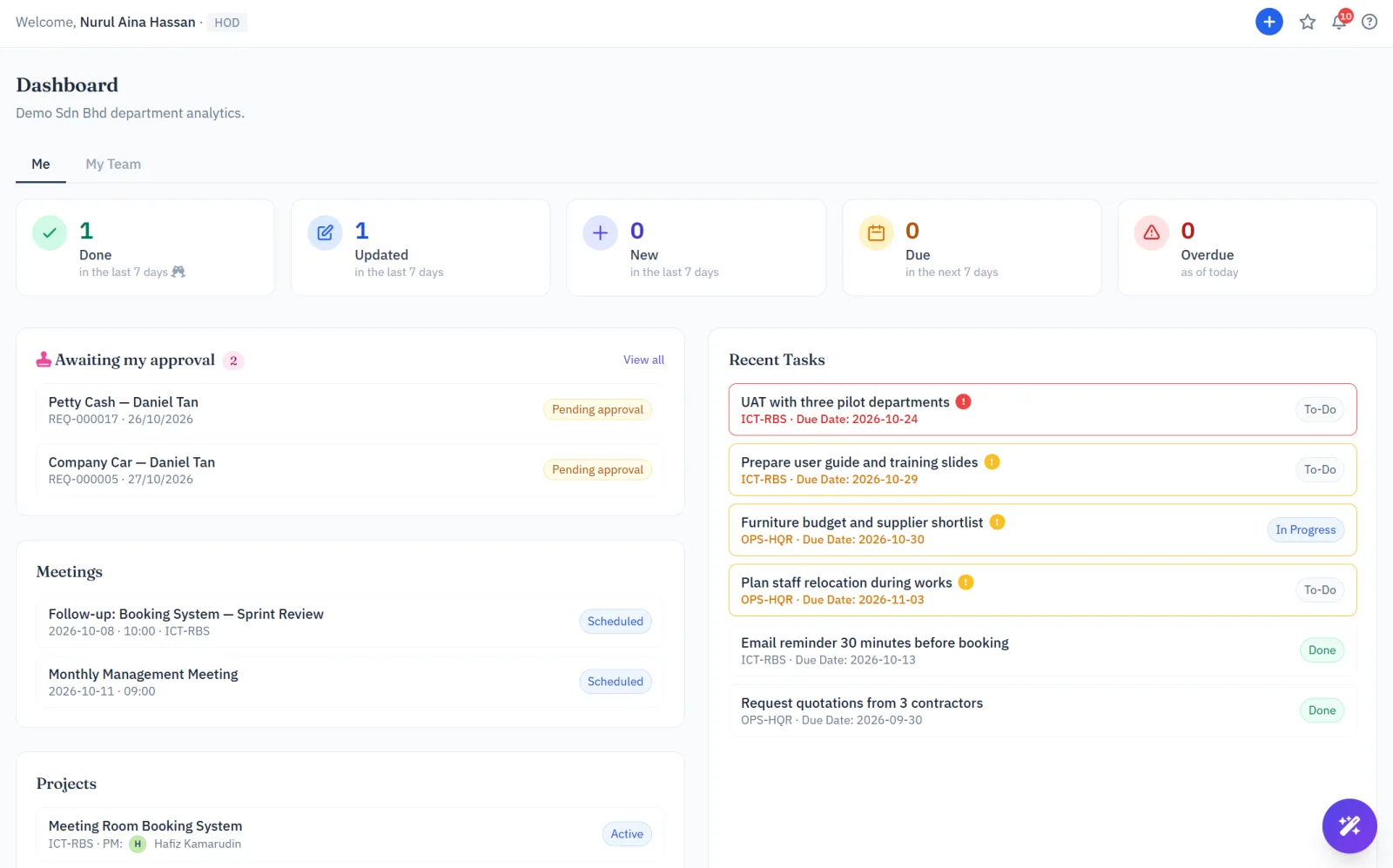
Five stat cards summarize the last seven days at a glance: tasks completed, tasks updated, tasks newly created, tasks due soon, and anything overdue. If you approve HR requests, an Awaiting my approval card lists the ones waiting for your decision — click one to open it. Today's Focus & Motivation — an AI feature that generates a short, on-demand summary of what to prioritize today and how the team is tracking — now lives as a shortcut inside the AI Chat Assistant, so it is one click away on every page, not just the Dashboard.
Projects
The top-level container for everything else — milestones, tasks, tests, meetings and attachments all belong to a project.
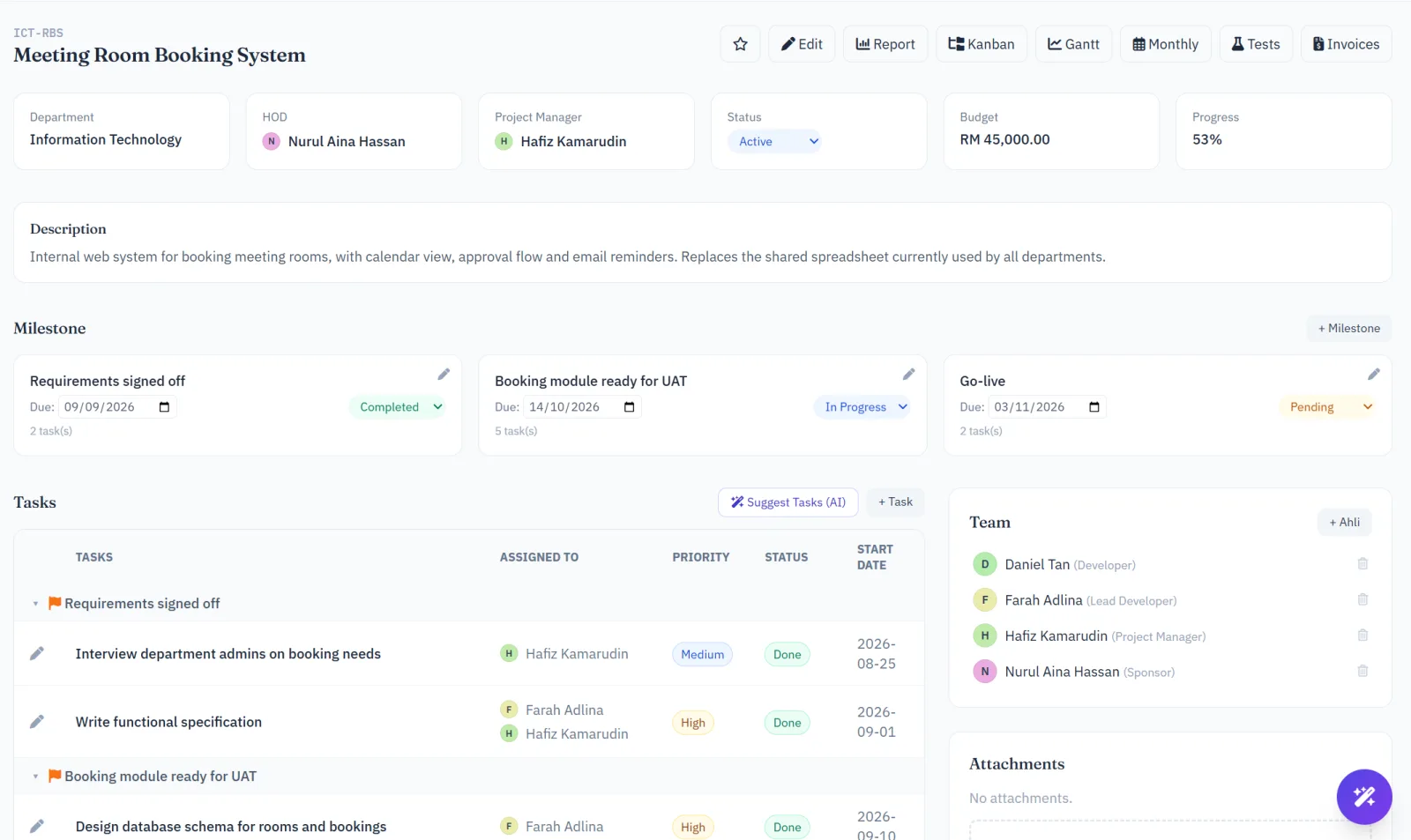
Creating a project records its name, description, department, priority, dates and budget. Who can create one, and whose projects they can see, depends on role: CEOs and HODs see across the organization or department; PMs see and manage what they own. Status changes (Planning In Progress Completed, and so on) and budget approvals go through the same page, with the approval step routed to whoever's role is authorized to sign off.
The Projects list shows each project's code, name, HOD, PM, priority, status, due date and progress. A due date shown in red has passed while the project is not yet Completed or Cancelled; projects without a due date show "—". Click any column heading to sort by it.
Each project's page brings together its milestones, task list, test cases, meetings and file attachments in one view, plus — where enabled — an AI-generated Risk Analysis forecasting schedule risk from current progress and deadlines, and an AI button to suggest tasks straight from the project description.
A project can also carry a Team list — people added directly to it who can always view its details, regardless of what their role would normally allow. Anyone who can edit the project can add or remove team members; adding someone doesn't by itself let them create tasks, which still depends on their own tasks.create permission.
Milestones
Milestones mark the major checkpoints inside a project — a phase completion, a go-live date, a client deliverable. They're created and edited by whoever can edit the project itself, and larger milestones typically go through the same approval step as project budgets before they're considered locked in.
Milestones appear alongside tasks on the Gantt chart, so schedule slippage is visible in context rather than buried in a separate list.
Tasks
The unit of actual work. Every task belongs to a project, can have sub-tasks and a checklist, and tracks status, percent-complete, assignee, due date, comments, time logged and file attachments — all on one detail page.
Browsing the task list
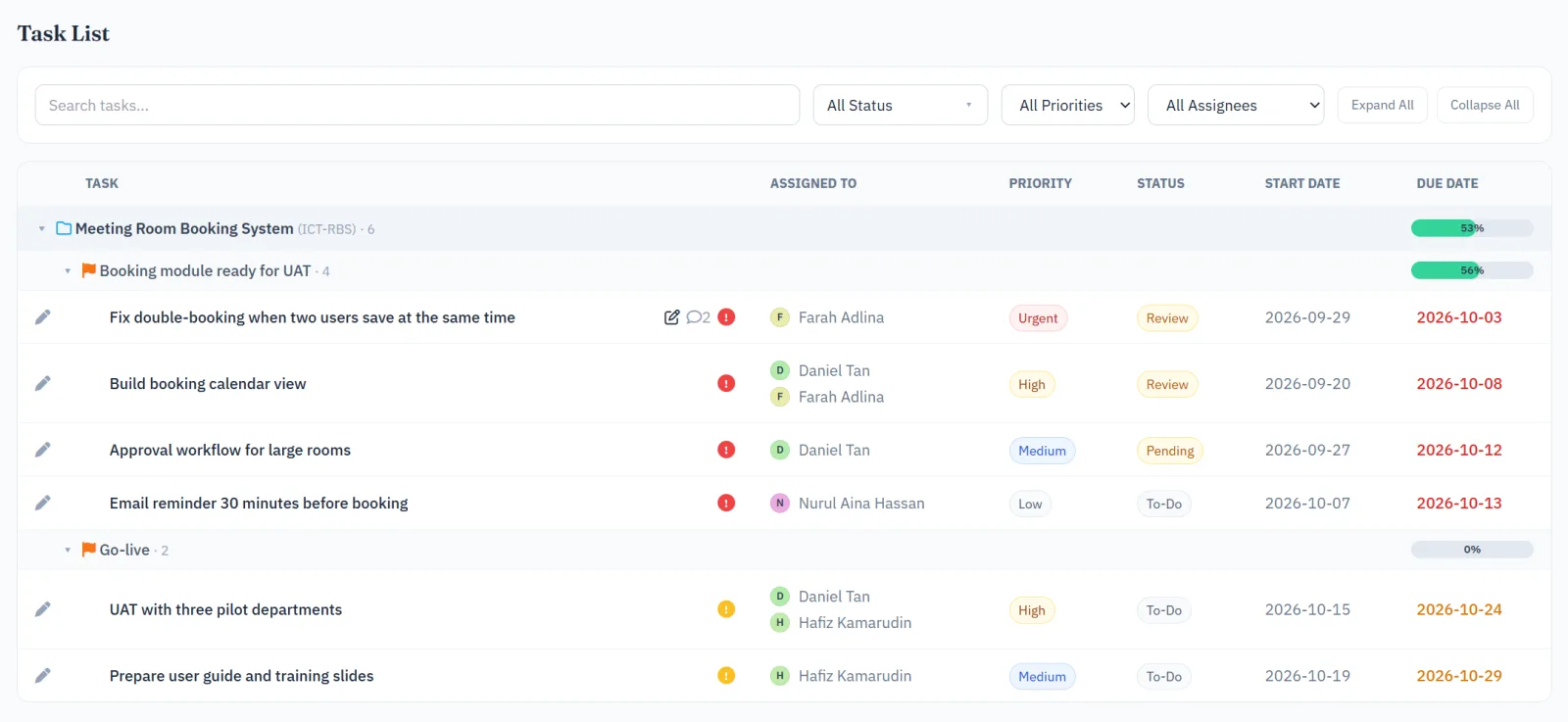
The main task list groups everything by project, then by milestone where a project uses them — sub-tasks nest under their parent task. Each project and milestone group can be collapsed or expanded independently, and your collapse choices are remembered the next time you visit. A completion-percentage bar and task count sit on every project and milestone header, so progress is visible without opening the group.
Small icons beside a task's title show whether it's linked to a meeting, a backlog item, a test case or a bug report, and whether it has comments — hover the comment icon to see the latest one and who left it. A small red "!" marks anything overdue, and yellow marks anything due within seven days; the Status filter accepts more than one status at a time, so you can view, say, "In Progress" and "Review" together.
Quick Task — create a task from anywhere
Click the round + button in the top bar (or press N on any page) to open Quick Task. It asks for only five things: project, title, assigned to (you, by default), due date and priority. The project is filled in for you when you are on a project page, otherwise the last project you used is suggested. Pick the due date with one click — Today, Tomorrow, This Friday, Next week, End of month, 2 weeks or 1 month.
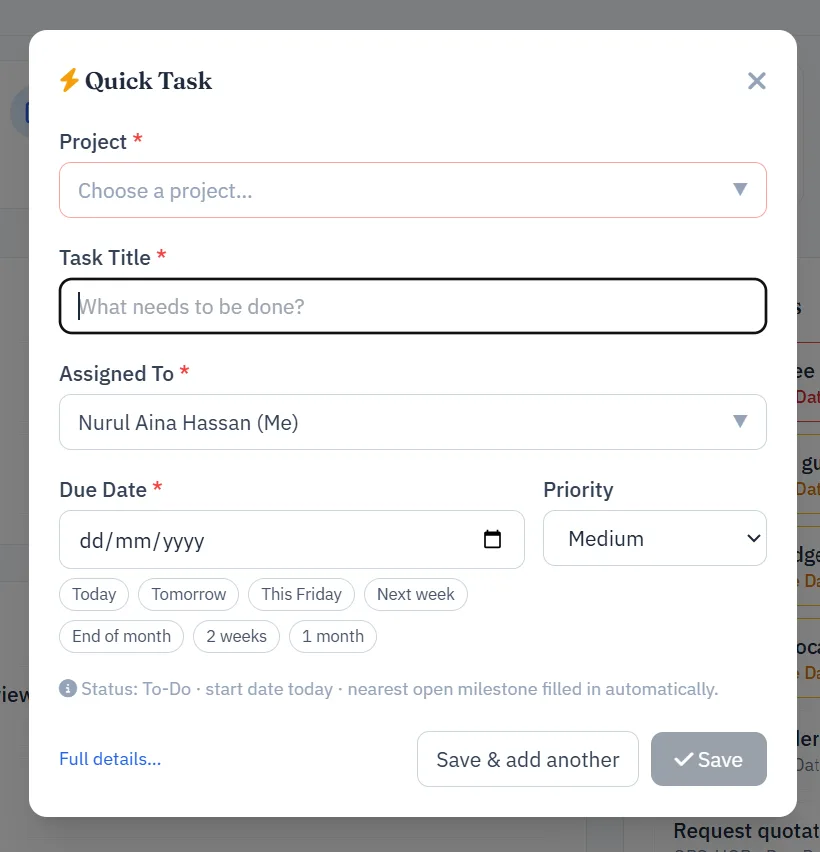
- Everything else is filled in automatically: status To-Do, start date today, and the project's nearest milestone that is not yet completed.
- Save & add another keeps the project, person and date so you can enter several tasks in a row — handy straight after a meeting.
- Need a description, checklist or CC? Click Full details… to continue in the full form with what you have already typed.
- On a project page, + Task opens Quick Task with that project already selected; the task list refreshes when you close it.
- On the Kanban board, + Add task under a column opens Quick Task with that column's status.
Creating and assigning
The full form (from Full details… in Quick Task) uses the same defaults — assigned to you, start date today, nearest open milestone. The due date is required and has the same one-click shortcuts (Today, Tomorrow, This Friday…). If you open it without a project, it asks you to choose the project first; the form then reloads with that project's milestones, keeping the title, due date, priority and assignee you already entered. The checklist is always shown. Less-used fields — estimated hours, CC, parent task and dependencies — are folded under More details, which opens automatically when any of them already has a value.
Every role can create tasks and sub-tasks, but who a task can be assigned to is where roles differ. Senior Developers can assign to anyone on the team; Junior Developers can only assign tasks to themselves — this is intentional, not a bug, and keeps ownership unambiguous for newer team members. PMs and above can assign freely within their own projects.
Working a task
From the task detail page you can update status and percent-complete, leave comments for the team, log time spent, tick off checklist items, and attach supporting files. An AI button on the create/edit form can draft a description and checklist for you from a short prompt — a starting point to edit, not a final answer.