Planning Views
Kanban Board
A drag-and-drop board of every task in a project, grouped by status column. Moving a card between columns updates that task's status immediately — no separate save step. Open the board for a specific project from that project's page, or from the Kanban item in the sidebar to choose one.
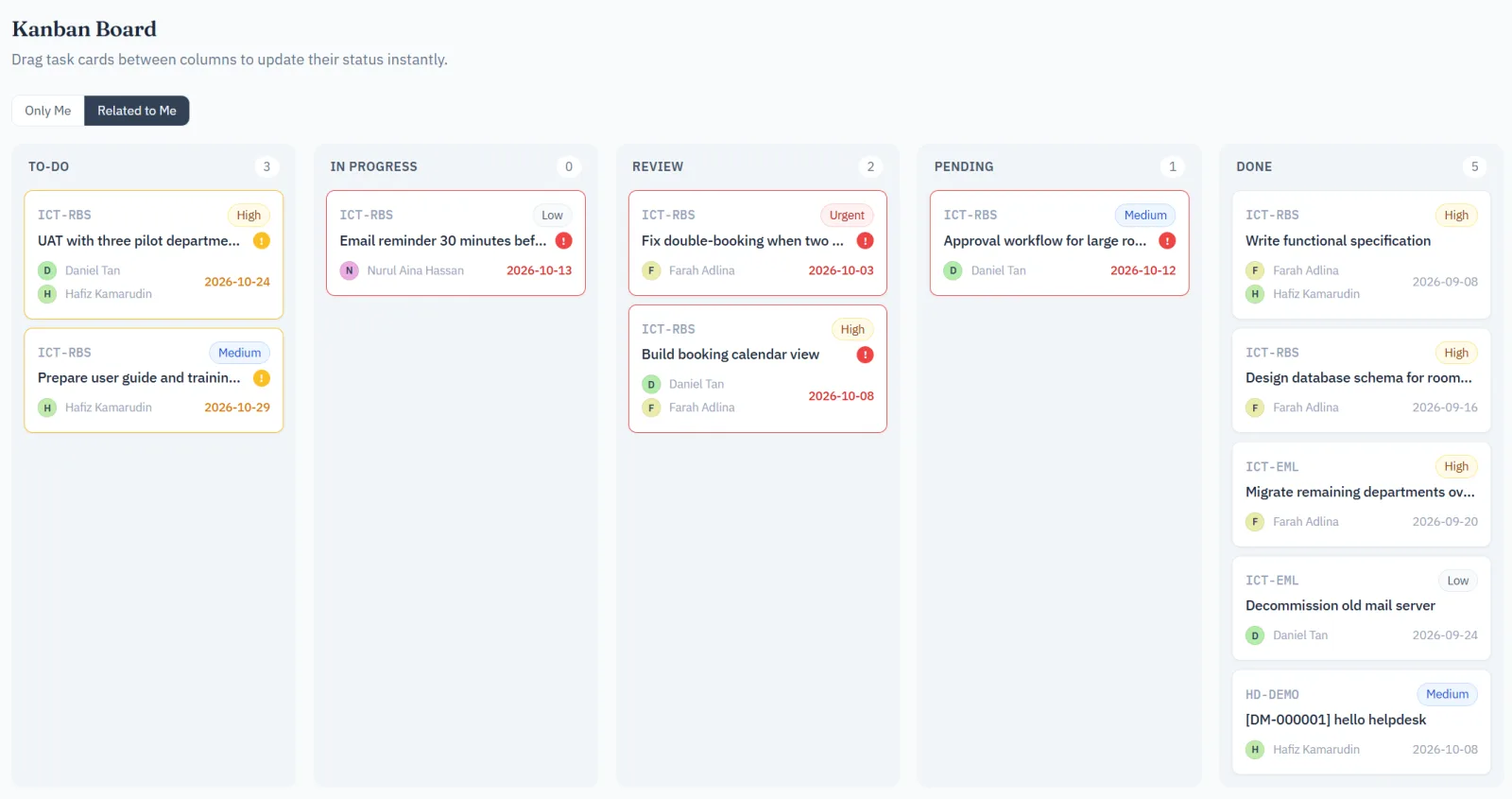
Any card not yet Done is outlined in red if it's overdue, or yellow if it's due within seven days, with a matching "!" badge beside the title — so work at risk stands out on the board itself, without opening each card to check its due date.
Add a task straight into a column: click + Add task at the bottom of any column. Quick Task opens with that column’s status (and the board’s project) already set; after saving, the board refreshes to show the new card.
Gantt Chart
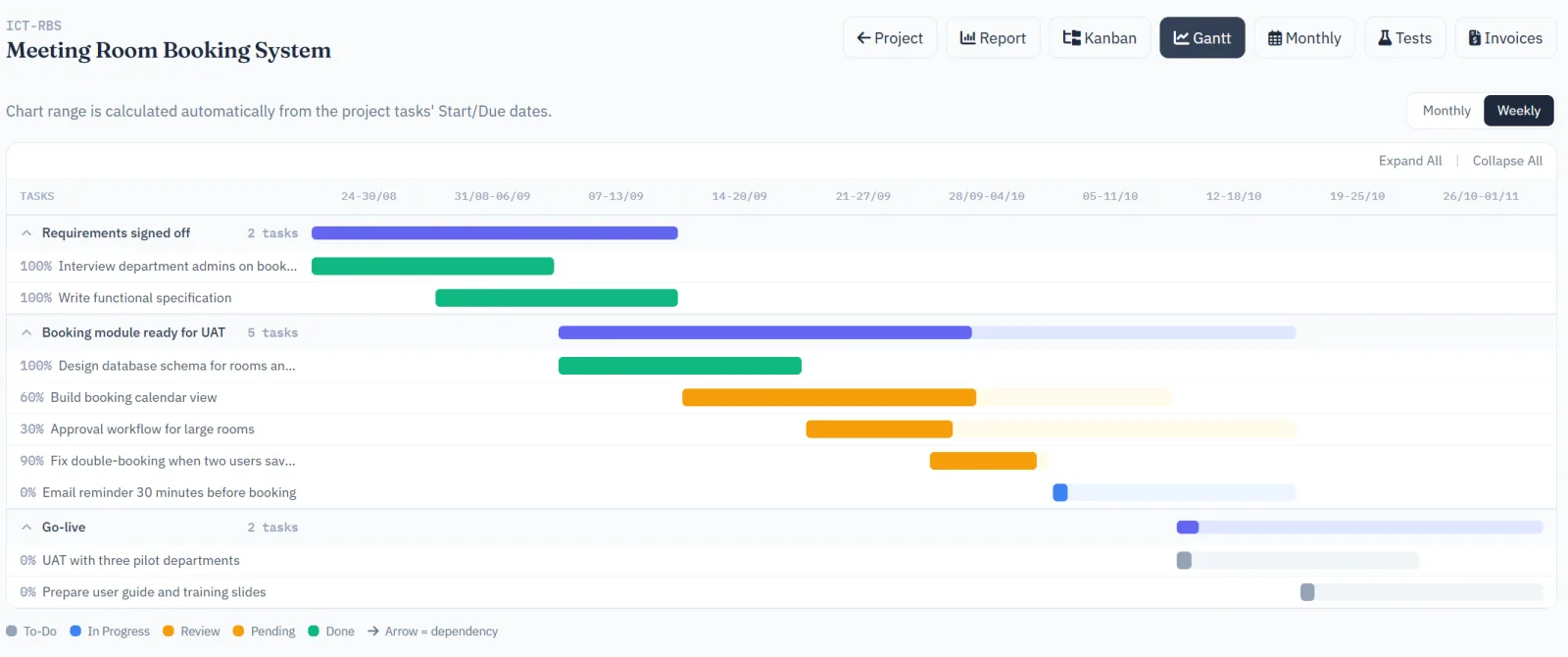
A timeline view of a project's tasks and milestones plotted against their start and due dates, so overlaps, dependencies and slippage are visible at a glance rather than inferred from a list of dates.
Monthly Layout
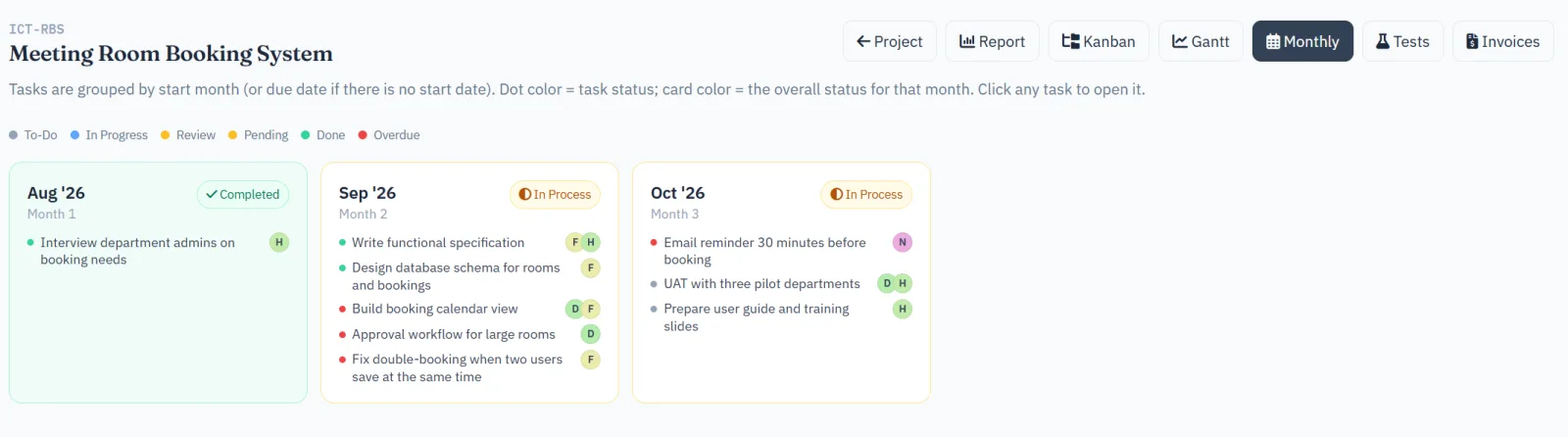
A calendar-month grid of a project's task load — useful for spotting which weeks are overloaded before they happen, rather than after.
Calendar
A combined calendar across all your projects — tasks, milestones and meetings due on a given day, in one feed, so you don't have to check each project separately to see what's landing this week.
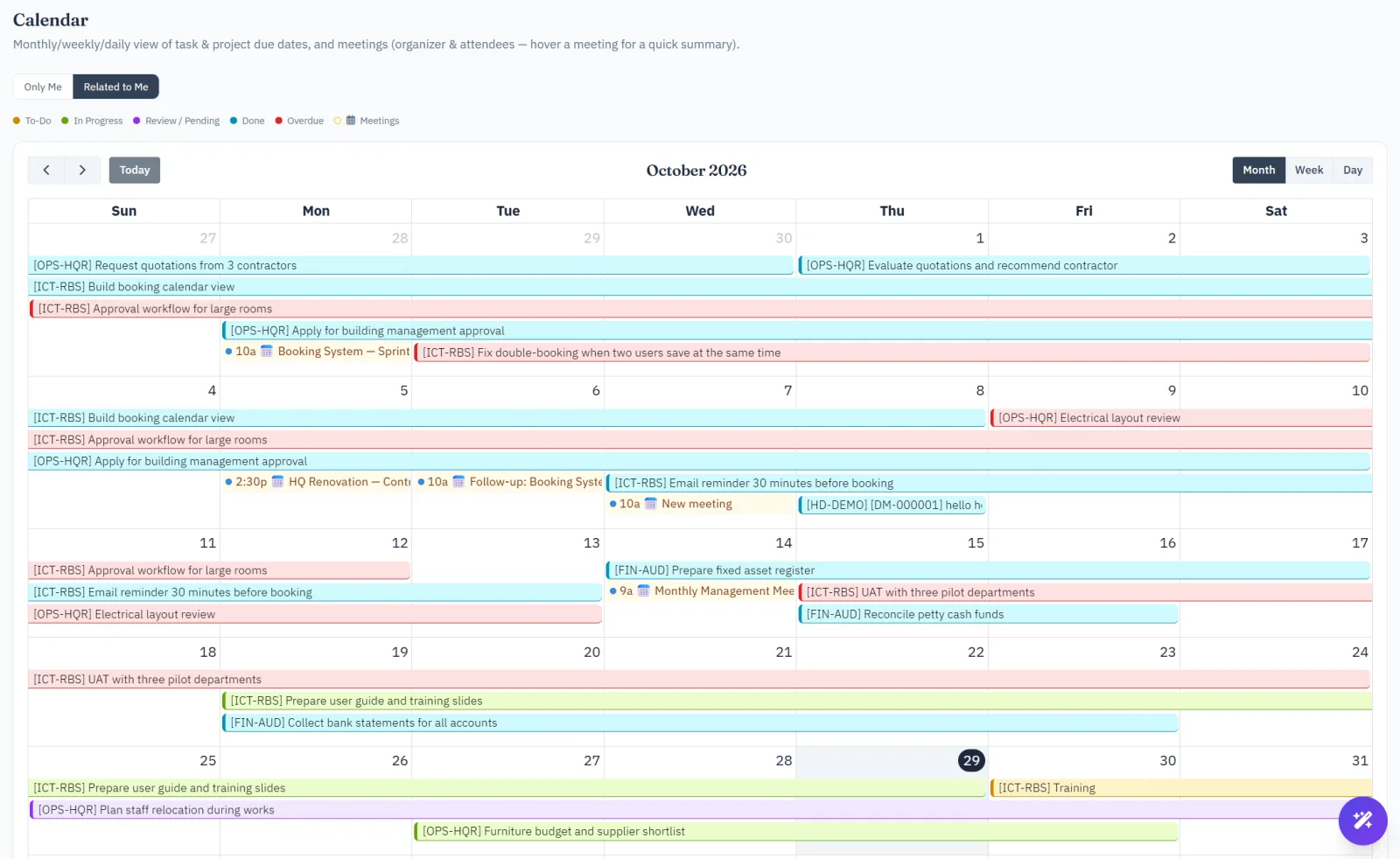
Overdue tasks are always shown in red, overriding their normal status color, so anything that's slipped past its due date is impossible to miss regardless of which view (month, week or day) you're looking at.
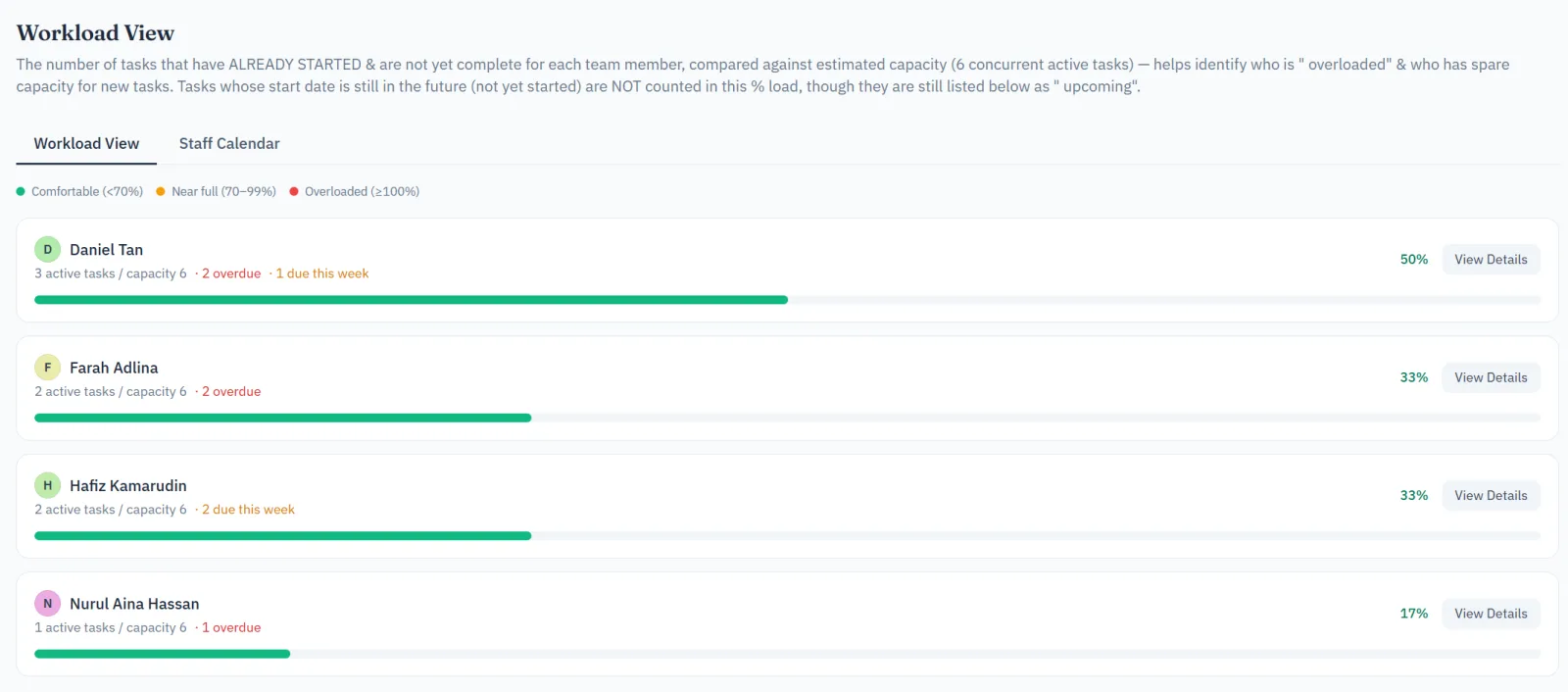
Workload
A per-person view of how much work is currently assigned to each team member, so a manager can spot who's overloaded and who has room — available to CEOs, Admins, HODs, PMs and Senior Developers, since it's a view over other people's work rather than your own.
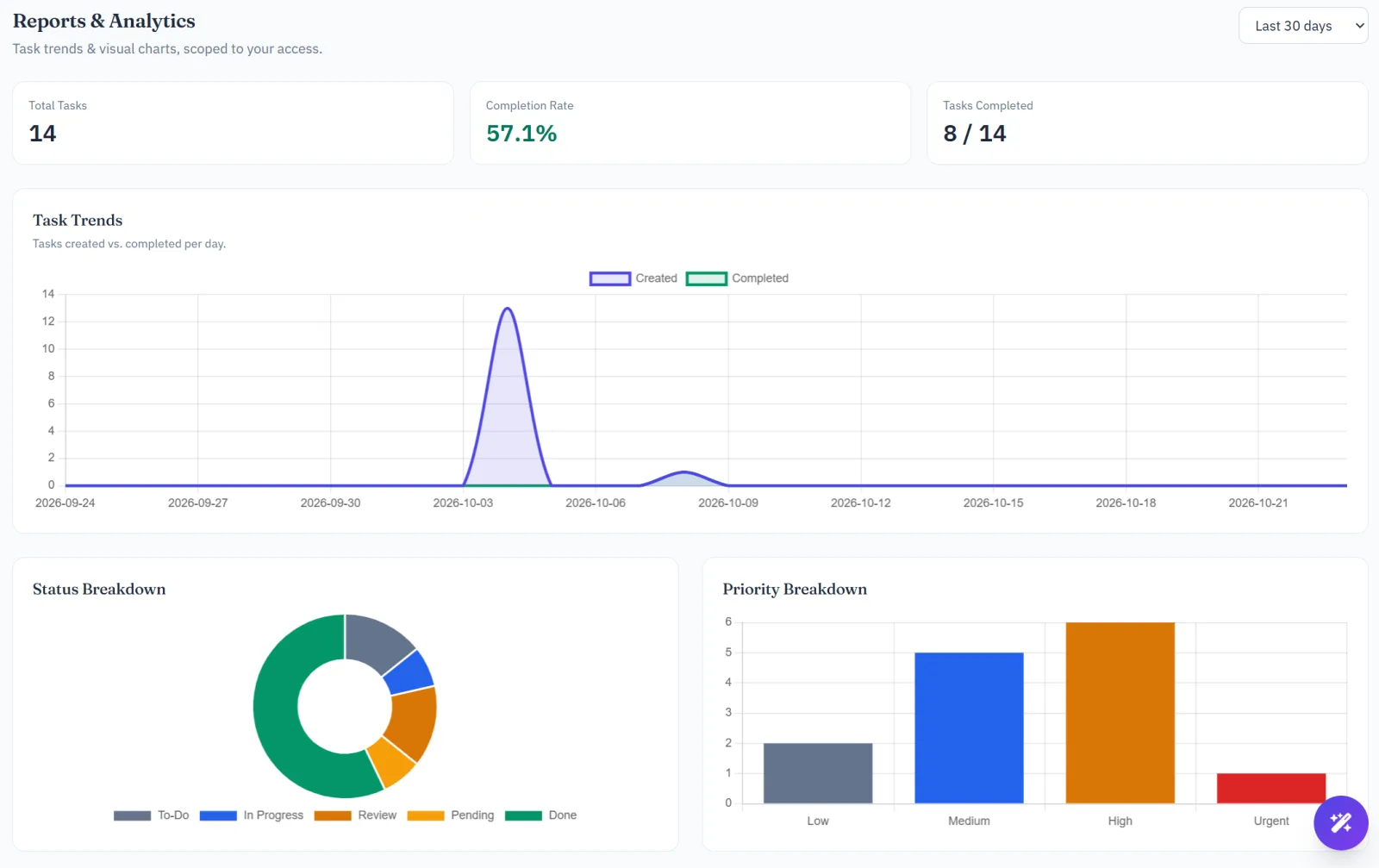
Reports & Analytics
Charts and summaries covering progress, completion rates and delivery trends. What each person sees is scoped to what they're already allowed to see elsewhere in the system — a Senior Developer sees their team's numbers, a CEO sees everything — so there's no separate permission to configure here.
Project Report (PDF)
A one-click PDF snapshot of a single project — overview, key metrics, milestone progress, overdue tasks, upcoming deadlines and team workload — for sharing outside the system or keeping as a dated record.
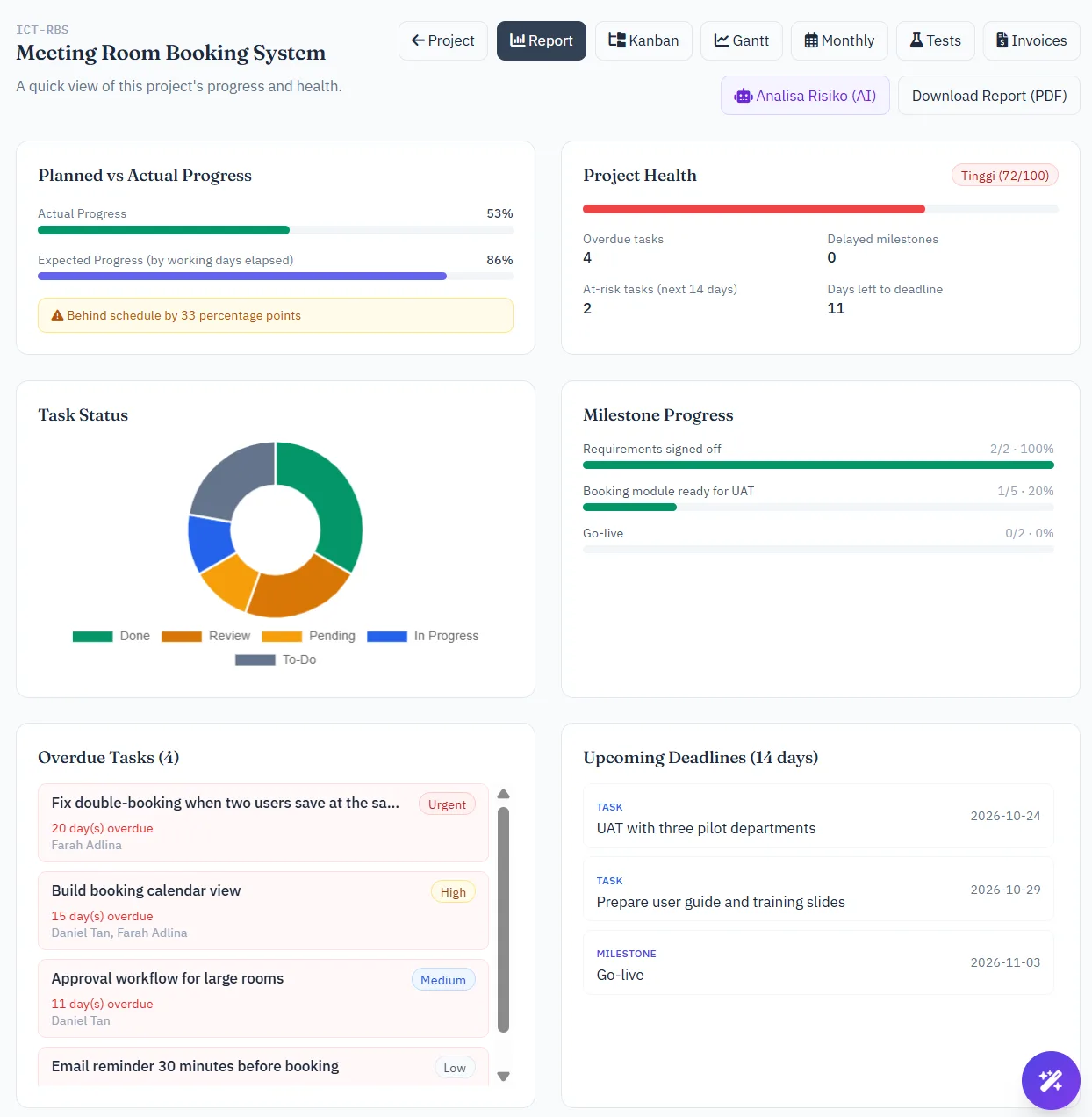
Open a project and use the Download Report button on its Summary page. The PDF only ever shows what you're already allowed to see in the app — there's no separate export permission to configure.
Which sections appear, the header band color, and an optional footer note are all set once for the whole system by an administrator — see Report Template.
Planning Health
One page for the tasks that quietly go wrong: nobody assigned, past their due date, or not touched in a week.
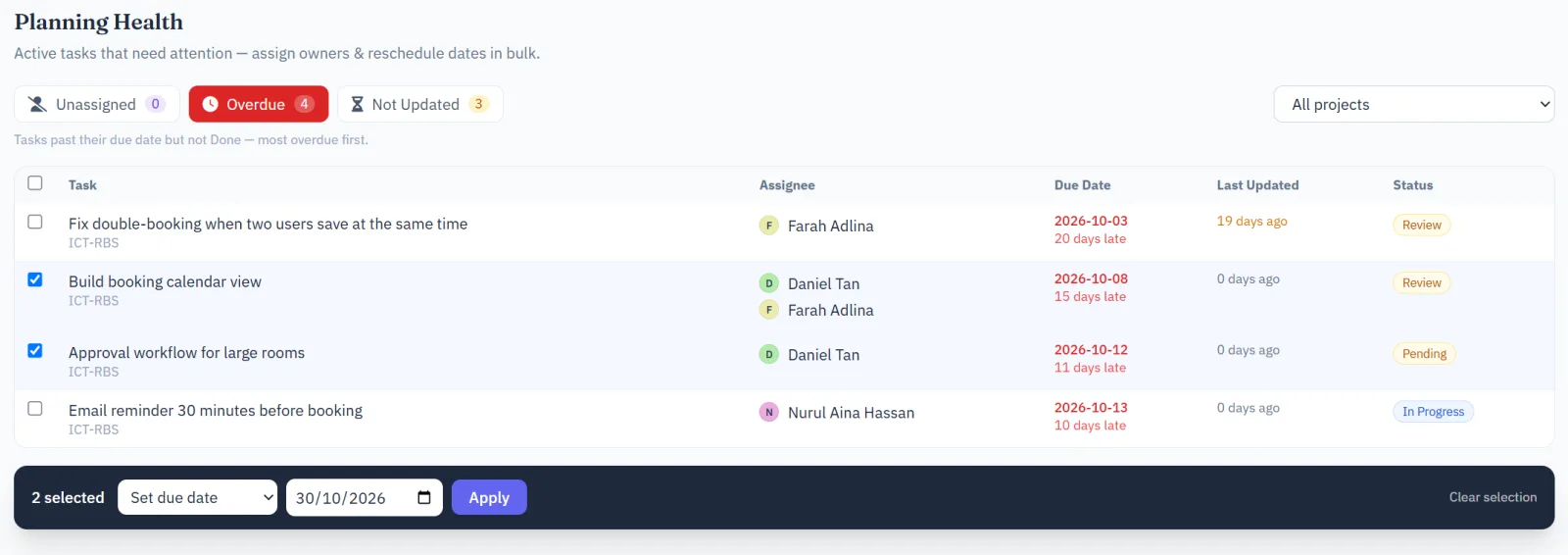
Switch between Unassigned, Overdue (most overdue first) and Not Updated (no change for 7 days or more), optionally filtered to one project. Tick the tasks you can edit and fix them in bulk — set an assignee, shift their dates by a number of days, or set one due date for all of them. Only tasks you already have permission to edit can be selected, and new assignees are notified as usual.
Project Monitor
The system keeps an eye on your projects for you — every morning it looks for trouble, alerts you to anything serious straight away, and sends a summary every Monday at 8am. You don't have to set anything up.
What it looks for
- Projects at risk — the same risk score as the Schedule Risk Forecast card (overdue tasks, delayed milestones, behind schedule, days left). The issue always says what caused the score, for example "High risk (score 72/100) — 4 overdue tasks, ends in 10 days".
- Stalled tasks — In Progress, Review or Pending with no update, status change, comment or time logged for 7 days.
- Silent projects — open tasks but no activity at all for 14 days.
- Unbalanced workload — someone on the project is at 100% of capacity or more while another member is at 50% or less. The CEO and administrators on a Team List are not counted as "still light", since they oversee the project rather than carry out its tasks.
- Approaching deadlines — the project ends within 14 days with progress under 80%, or a milestone ends within 7 days with tasks still open.
- Chained issues 🔴 — the system connects problems instead of reporting them one by one: a task that is overdue or stalled, whose person also has two or more other High/Urgent tasks (or is overloaded), on a project ending within 21 days, becomes one Critical issue explaining the whole chain. A person who is holding up tasks in two or more projects is flagged too.
Each issue is marked 🔴 Critical, 🟠 High or 🟡 Medium. All of this is worked out by the system from your real data — not guessed by AI — and an issue closes by itself once the problem is gone. Administrators can change the number of days for each check.
Which projects you watch
You automatically watch your projects — those where you are the PM, on the Team List, the Head of Department or the creator. On any project page, the 🔔 button lets you change this: Watch another project you can open, Mute one you don't need alerts for, or go back to Automatic. This is separate from the ⭐ favourite button, which is only a bookmark. The CEO and administrators get the five riskiest projects in the Monday report, without day-to-day alerts unless they watch a project.
Alerts and the Monday report
- Immediate alert — when a new Critical or High issue appears (or an issue gets worse), everyone watching the project gets one notification. The same issue is never sent twice.
- Monday report (8am) — the open issues on the projects you watch, grouped by project, with a short ✨ AI comment on the overall impact and what to do (written from the facts the system found). Managers also get the team workload summary (who is overloaded, overdue and due this week). Nothing is sent if there is nothing to report.
- Email — alerts and the Monday report are also emailed, unless you turn off "Email Project Monitor alerts & reports" on your Account page (separate from the general email switch).
Open Project Monitor in the Management menu to see all open issues, filter by severity or project, and jump to the task or the project summary. You can also ask the chat assistant "What are my project issues?" or tap My project issues.