HR
Ask HR
A private AI assistant for HR questions that answers only from your company's own HR documents — the employee handbook, policies and procedures.
Open HR from the left menu and ask in your own words, for example "How many days of annual leave do I get?" or "What is the claim limit for outstation travel?". The answer streams in as it is written.
- Answers from HR documents only. If the handbook does not cover your question, Ask HR says so and suggests you contact HR — it does not guess.
- Kept separate from everything else. Ask HR only sees the question you type on this page and your own recent HR conversation. It never uses your projects, tasks or the floating AI Chat Assistant, and they never see your HR questions.
- Your conversation is kept on this page, with a date label between days (Today, Yesterday, or the date); Clear deletes it.
- Runs on Zeta AI only — HR questions are never sent to a cloud AI provider.
- Privacy: the text of your questions is not written to the audit log.
HR documents
Staff responsible for HR upload the handbook and policies under HR HR Documents (PDF, Word .docx, Excel .xlsx, PowerPoint .pptx, .txt, .md, and scanned PDFs or images, which are read with OCR). Each file shows its status while Zeta AI processes it — including OCR progress for scanned files, and can be removed later. Uploaded files are visible only to people allowed to manage HR documents — other staff get the answers, not the files.
HR Requests & Approvals
Staff requests — petty cash, the office car, peripherals and anything else you define — with an approval chain that runs itself.
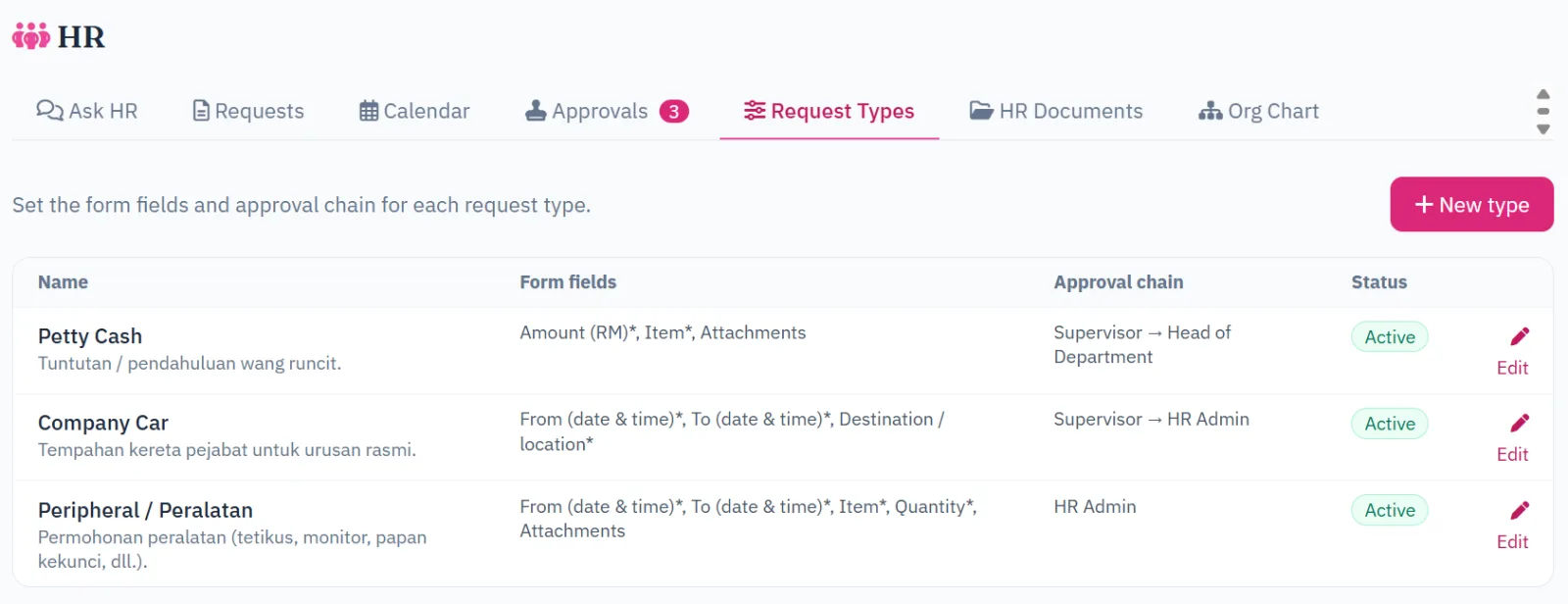
- Submit a request: choose the request type and fill in its form. Each type decides which fields are shown and required (amount, date range, item, quantity, destination, attachment); the purpose is always required. You can also send a request by chatting with the AI assistant — e.g. "Book the company car tomorrow 9am".
- Approval chain: each type has up to five steps — the requester's supervisor, the Head of Department, a role, a named user or the HR administrator. Approvers are fixed when the request is submitted, and consecutive steps with the same person are skipped.
- Approve or reject: approvers are notified in turn and see the request on their Dashboard under Waiting for my approval. Rejecting requires a comment. Requesters can cancel while a request is still pending.
- Safeguards: nobody approves their own request, and if a step has no approver the request goes to the HR administrator — it is never approved automatically.
Booking Calendar
See at a glance who has booked the office car, a projector or other shared items — and from what time until what time — — and book a free slot straight from the calendar.
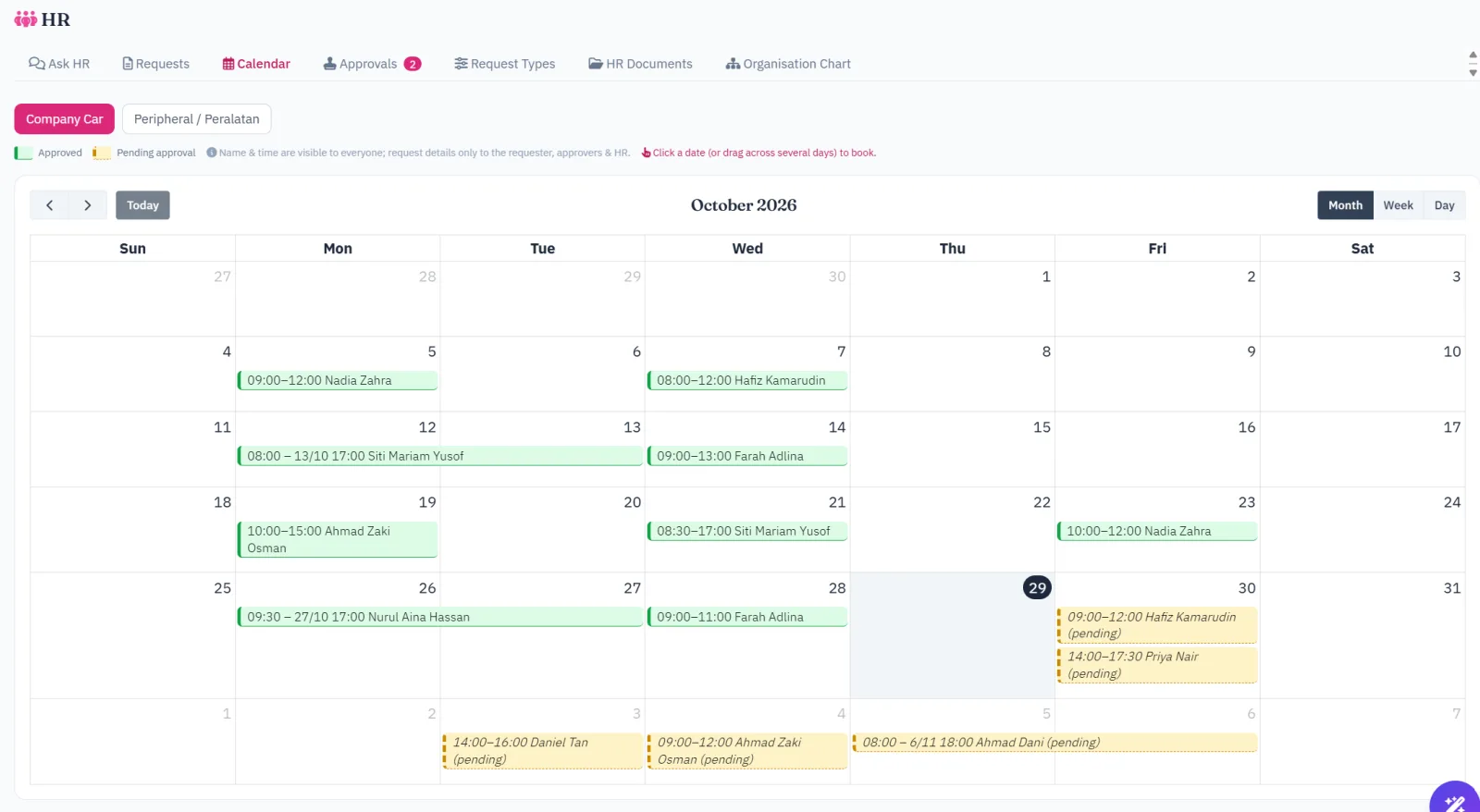
Open HR Calendar. Every request type that has a date range (for example Office Car or Peripherals) gets its own sub-tab, so car bookings are never mixed with equipment loans.
- Time on every booking: each entry shows the time range and the requester, for example 08:00–12:00 Hafiz. Bookings that run over several days show the end date as well. Use the month, week and day views to check whether the car is free this morning or only in the afternoon.
- Approved vs pending: approved requests are shown in solid green; requests still waiting for approval are shown in yellow with a dashed border and marked (pending), so you can see a slot that may soon be taken. Rejected and cancelled requests are not shown.
- Who sees what: all staff who can use HR Requests can open the calendar. It shows only the requester's name and the booked time — the purpose, destination and other details stay on the request itself, visible only to the requester, approvers and HR.
- Book by clicking a date: click a day (or drag across several days) and the request form opens in a pop-up with From and To already filled in — 09:00 on the first day to 17:00 on the last. In the week and day views, click or drag over the exact time slot instead. Adjust the times if needed, fill in the remaining fields and submit; you return to the calendar and your booking appears as pending. Past dates cannot be booked.
- Click an existing booking to open the request (if you are allowed to view it).
Organisation Chart
A live chart of who reports to whom, built automatically from each user's supervisor — no drawing tools, no separate file to keep up to date.
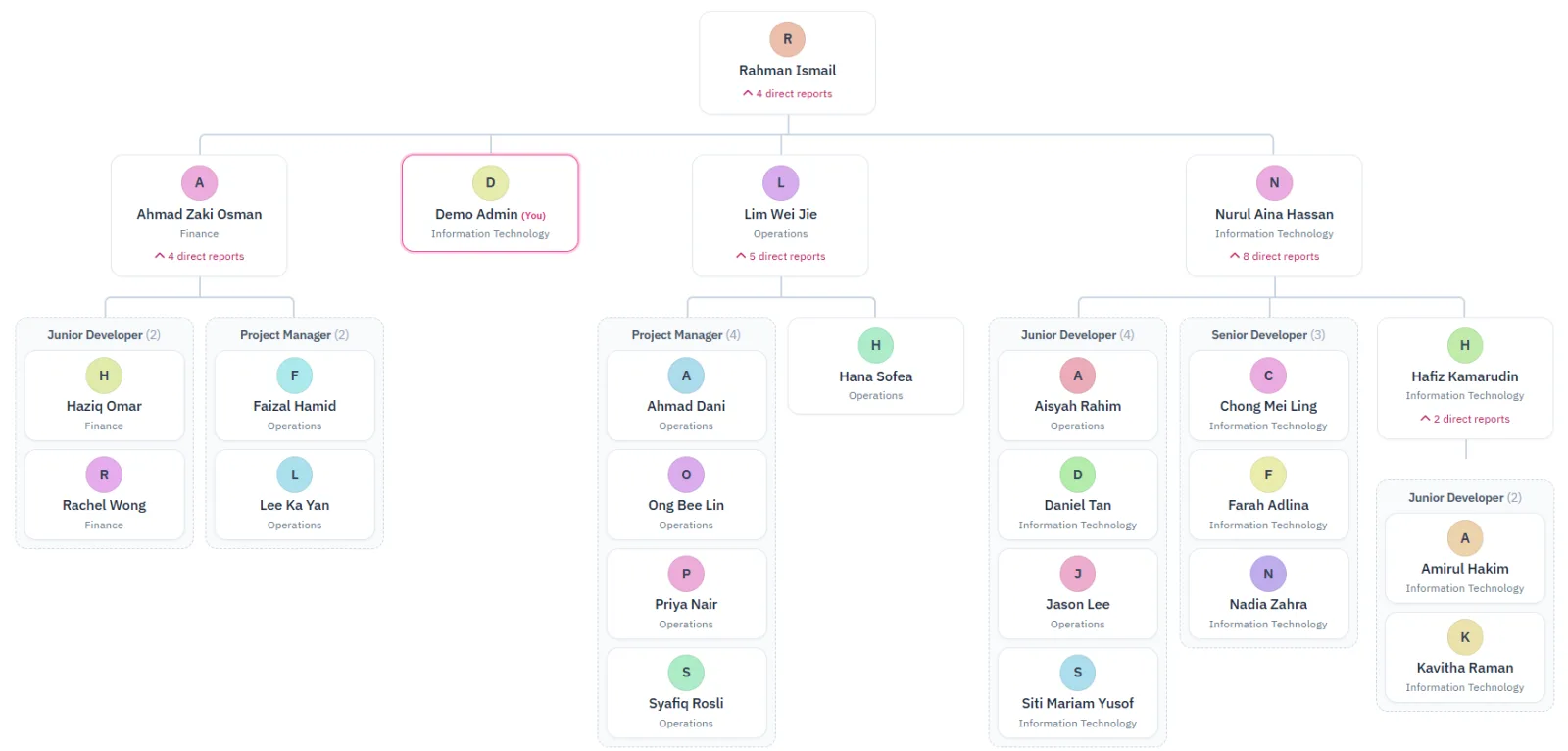
Open HR Organisation Chart. The HR menu is always available to every staff member for this tab, even when Ask HR and HR Requests are switched off.
- Built from "Reports to": each card is placed under the supervisor set on the user's profile (Admin Users). Change a supervisor and the chart updates immediately. Inactive users are left out.
- Simple cards: each card shows the avatar, name and department only — no role, e-mail or phone number. Your own card is highlighted.
- Grouped by role: staff who have no one reporting to them are grouped into a column by role when that role has more than one person — for example Programmer (6) or PM / BA (3) — so a large team stays compact instead of stretching sideways. People who lead their own team, and roles with only one person, keep their own branch.
- Expand and collapse: click n direct reports under a supervisor to fold or unfold their branch. Wide charts scroll sideways.
- Users with no supervisor appear at the top level; the largest tree is shown first.