Jobs & purchasing
Work orders & actual costs
A work order can only be opened for an Awarded RFx. Record the customer's PO number, PO date, the customer PO file and the delivery date.
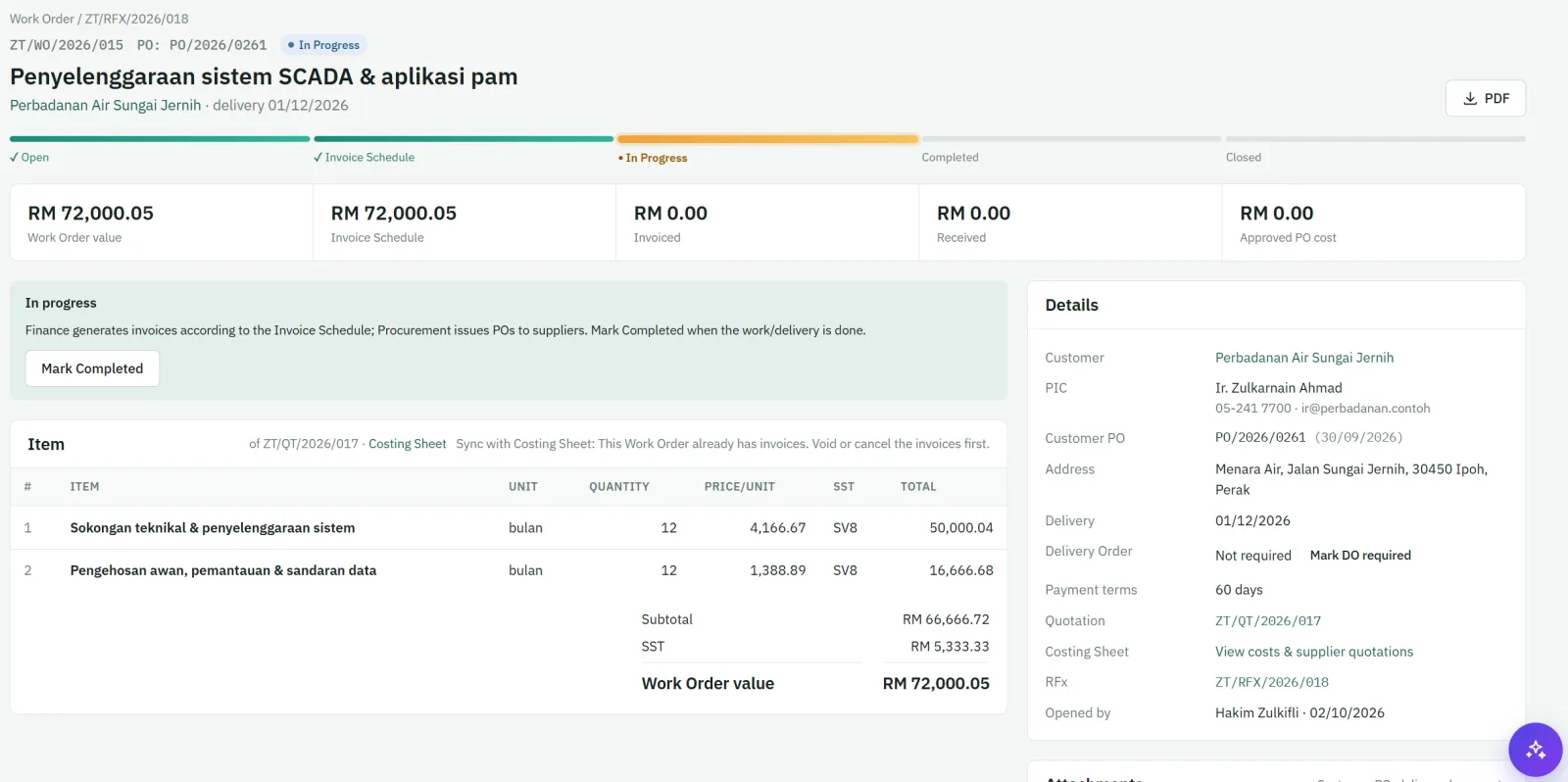
- Select awarded items — customers sometimes award only part of the quotation. Only the selected items count towards the contract value.
- SST is calculated from the tax codes; subtotal and total are automatic.
- Actual costs — Finance records the real in-house costs of the job, so the profit report shows actual margin next to the estimated margin.
- Align with costing — if the awarded scope differs from the costing, the costing can be aligned to the work order.
- Mark whether a delivery order is required, and mark the work order Completed when the work is done.
Statuses: Open → In progress → Completed → Closed (or Cancelled).
The work order list opens on Active, with In progress right beside it. Star the work orders you follow closely — they stay at the top of the list and in the star menu.
Purchase orders
From the work order, select the costing items tagged to suppliers. Zeta ERP groups them and creates one PO per supplier.
- Fill in delivery address, delivery mode and terms, contact person and expected date. Default PO notes come from Parameter Setup.
- Every PO needs approval before it can be sent. Approvers can view the costing and the supplier's quotation.
- If a PO price is higher than the cost in the costing sheet, a cost warning is shown to the preparer and the approver.
- After approval, download the PDF or email it to the supplier and mark it as sent.
Statuses: Draft → Pending approval → Approved → Sent (or Rejected, Cancelled). Payments made to the supplier are tracked under Supplier payments.
Delivery orders
A delivery order (DO) records goods or services delivered to the customer. It is created from an invoice, and the work order shows whether a DO is still required.
- Edit the DO details, then download the DO PDF.
- Mark it Sent when it leaves, and Received when the customer acknowledges it.
How approvals work
Quotations, purchase orders and invoices go through approval before they leave the company.
- Submit sends the document to the approver(s); they are notified on the Dashboard and by email.
- Approval levels depend on the amount and on the limits set in Parameter Setup. An approver can also have a personal approval limit; documents above it go to the next level.
- Approve locks the document and records who approved it and when. Reject returns it to the preparer to be corrected, with your comment.
- Approvers can also approve straight from the Dashboard, in Awaiting your approval, without opening the document.
- Approved documents can carry the approver's digital signature, or a "This document is computer generated" line — chosen in Parameter Setup.