Start here
Everything Zeta ERP does, in one place.
Zeta ERP manages the full life of a job — from the moment a customer sends a request for quotation until their payment is in the bank. This guide explains every module, every role and the AI assistant.
Simple on the surface, complete underneath. You only see the next step you need to take. Calculations, document links, numbering, status updates and the audit trail happen automatically.
- Every document offers its next step (for example Create Quotation, Open Work Order, Create Invoice) and carries its data forward, so you never type the same items twice.
- Statuses change by themselves wherever possible — for example an invoice becomes Paid when its full payment is recorded. You only set business decisions yourself, such as Bid / No-Bid or Awarded / Lost.
- Amounts are in Ringgit Malaysia (RM), with SST calculated per item from your tax codes.
Signing in & your profile
Your System Admin registers your account and gives you a temporary password. Sign in with your username and that password, then change it when asked.
Language
Zeta ERP works in English and Bahasa Melayu. Switch language from the menu at any time; your choice is remembered.
Profile, notifications & signature
Open your user menu → Profile, notifications & signature to:
- change your password;
- choose which email notifications you receive — transaction emails (approvals, documents approved or rejected) and, for each Alert Centre category, Immediately, Monday Report or Off (critical alerts are always sent);
- upload your digital signature (PNG or JPG). If you approve documents, your signature can be printed on approved quotations, POs and invoices — the system reminds you if you have not uploaded one yet.
Dashboard & approvals waiting
The Dashboard is your starting point. It shows big shortcut cards to the main modules — Customers, Vendors, RFx, Quotation, Work Order, PO, Invoice and Payment — each with a live count, and what needs your attention.
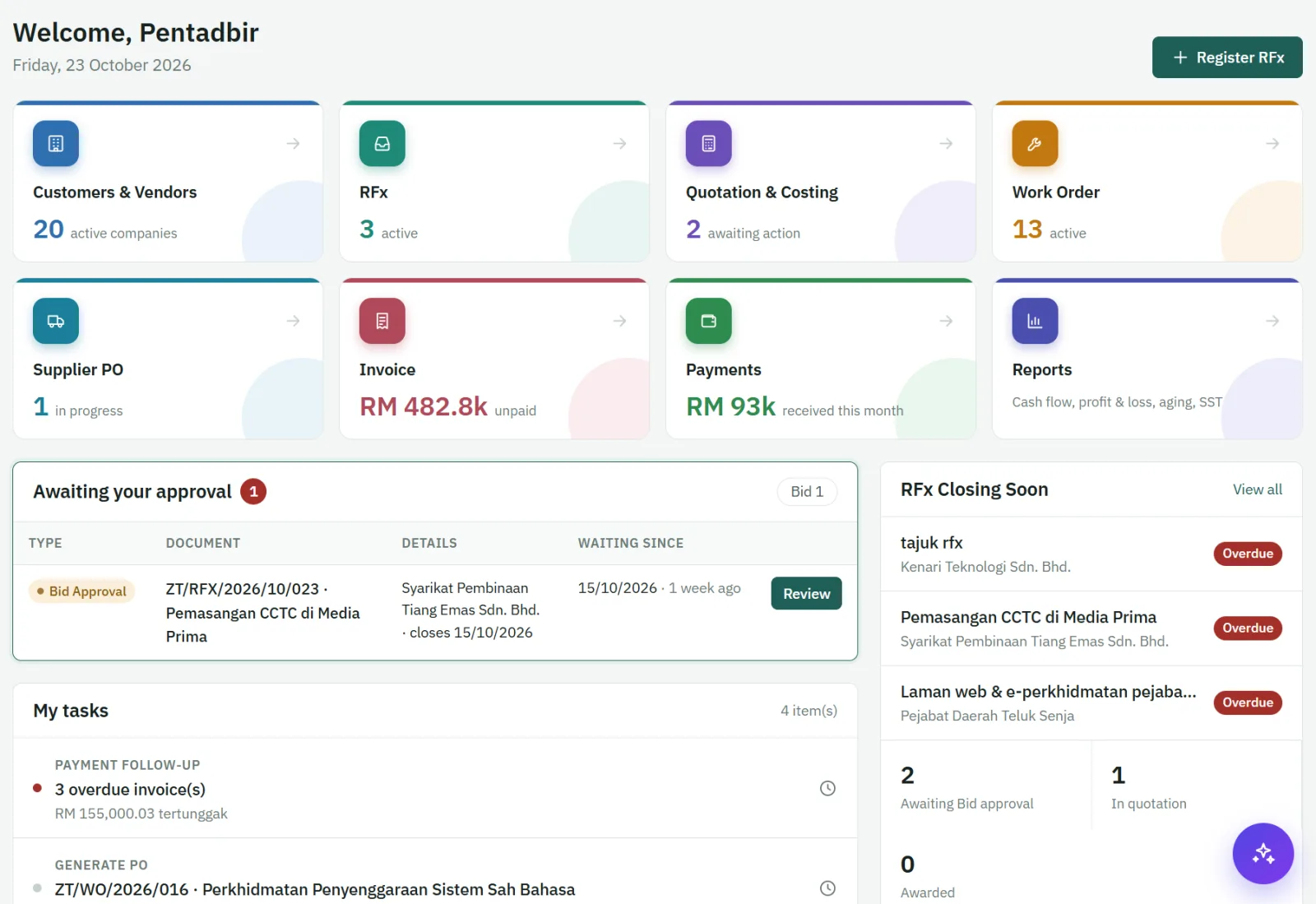
- Approvals waiting for you — for example "Your approval is required" on a quotation, PO or invoice. Open it, check it and choose Approve or Reject (with an optional comment).
- Alerts such as RFx close to their closing date, overdue invoices and vendor POs not yet paid.
- The bell at the top of every page counts the open alerts that are yours (red when one is critical) and opens the Alert Centre. You also receive them by email, so you are reminded even when you have not signed in.
Search, favourites & next steps
Quick search
Click the search icon in the top bar, or press / or Ctrl+K on any page. Type part of a customer name, document number, title or reference — for example Mega, WO/2026/005 or a customer PO number. Results appear as you type, grouped by type: customers & vendors, RFx, quotations, work orders, POs, invoices, DOs and receipts.
Use ↑ ↓ to choose and Enter to open. Esc closes the search.
Favourites
Press the star on a customer, vendor, RFx or work order — in the list or at the top of its page — to add it to your favourites. Press it again to remove it. Your favourites:
- appear in the star menu in the top bar, so you can open them from any page;
- are listed first in the Customers, RFx and Work Order lists.
Favourites are personal — each user has their own.
"Next step" boxes
At the top of every RFx, quotation, work order, PO and invoice there is a box that says where the document stands and what happens next, with the button for that action. If the action belongs to someone else, the box shows Waiting for: with the role and names of the people who can act — for approvals, only the approvers whose limit covers the amount.
Roles & who does what
A user can hold more than one role (for example Sales + Approver). Only the System Admin assigns roles — users can never give themselves approval rights.
| Role | Main work |
|---|---|
| Sales | Registers RFx and customers, prepares quotations, records Awarded / Lost. |
| Procurement | Costing sheets, supplier quotations, vendors and purchase orders. |
| Operations | Runs work orders and delivery orders. |
| Finance | Invoice schedules, invoices, receipts, supplier payments and actual job costs. |
| Approver | Bid / No-Bid decisions and approval of quotations, POs and invoices, within their approval limit. Receives the management Monday Report and may dismiss alerts. |
| Reports | Cash flow, reports, exports and the AI assistant (Ask your data). |
| Admin | Users and roles, company profile, Parameter Setup, alerts & escalation settings and the audit log. |
Menus and buttons you do not have the role for are simply not shown.