Insight
Alert Centre & escalation
The Alert Centre watches your records so that nothing slips through — missed or nearly missed deadlines, work that was never invoiced, costs running over the estimate and records left incomplete. It checks every working day at 7:30am and works by itself: you do not need to sign in for it to find a problem, and the alert reaches you by email.
Where to find it
- The bell at the top of every page shows how many open alerts are yours. It turns red when one of them is critical.
- Click it to open the Alert Centre: filter by category, see For me or All (managers), and Resolved (30 days). Each alert links straight to the record that needs attention.
What is checked
| Category | Alerts |
|---|---|
| Dates & deadlines | RFx near or past its closing date without a quotation sent · customer decision not recorded after a quotation was sent · work order near or past its completion date. |
| Pending approvals | A quotation, PO, invoice or Bid decision waiting too long for approval. |
| Invoicing & collection | Invoice schedule line due but not invoiced · work order completed but not fully invoiced · invoice approved but not sent to the customer · invoice overdue. |
| Cost, pricing & vendor payments | Actual cost above the costing estimate · project at a loss (always critical) · PO price above the costing sheet · vendor payment late. |
| Incomplete / inconsistent records | Work order without an invoice schedule or completion date · invoice without a delivery order · delivery order not confirmed received · a payment possibly recorded twice. |
Escalation: owner → manager → CEO
- Owner — the person responsible for the record (for example the RFx PIC, the work order creator or Finance for invoicing) receives the alert first.
- Manager — if it is still not resolved after a set number of days, it escalates to the owner's manager (the Manager (reports to) set for each user). The owner is told that their manager has been informed.
- Critical / CEO — later, or straight away for a project at a loss or a high-value item, the alert becomes critical and goes to the CEO / top management.
Emails are sent only when an alert is new or moves up a level — not every day. An alert closes by itself once the record is updated in the system (for example when the invoice is created), so the fix is always done in the record, not in the Alert Centre.
Snooze & dismiss
- Snooze 7 days — pauses emails for that alert, for example while waiting for the customer. Critical alerts cannot be snoozed.
- Dismiss — Approvers, Admin and the CEO can dismiss an alert that is not a real issue, with a reason (for example "already invoiced manually before the ERP"). The reason is kept in the audit log and helps tune the rules.
Monday Report
Every Monday at 7:45am one email summarises the week:
- Management (CEO, Approver and Reports roles) receive the key figures — invoiced and collected last week, receivables outstanding and overdue, what must be invoiced in the next 14 days, the largest overdue customers, months with negative cash flow and the number of critical alerts.
- AI commentary — Zeta AI writes a short summary and 2–3 priorities for the week from those figures. The AI only reads the figures the ERP calculated; it does not read the database and does not invent numbers. Always verify before acting.
- Everyone with open alerts receives a table of their own alerts — critical ones in red — each linking to the record.
Choose your emails
In your user menu → Profile, notifications & signature, choose for each alert category: Immediately, Monday Report only, or Off. Critical alerts are always sent immediately and cannot be turned off.
Cash flow
The 12-month cash flow view shows expected money in and out per month — projected from invoice dates and the dates payment is due under each contract — and the resulting net flow. A yearly view is available under Reports.
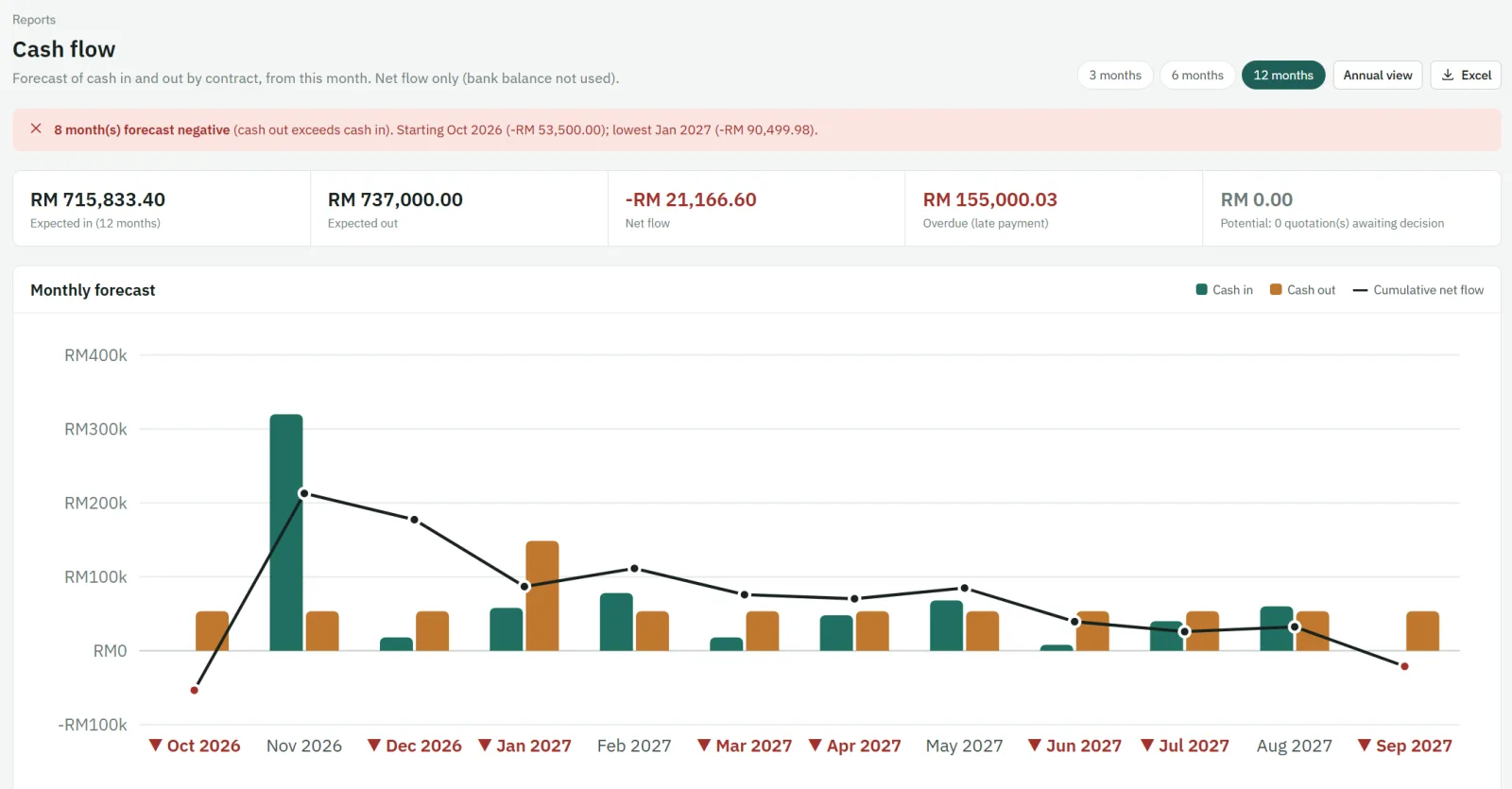
Bank balances are not used; the view focuses on the flow generated by your jobs.
Reports & export
| Report | What it answers |
|---|---|
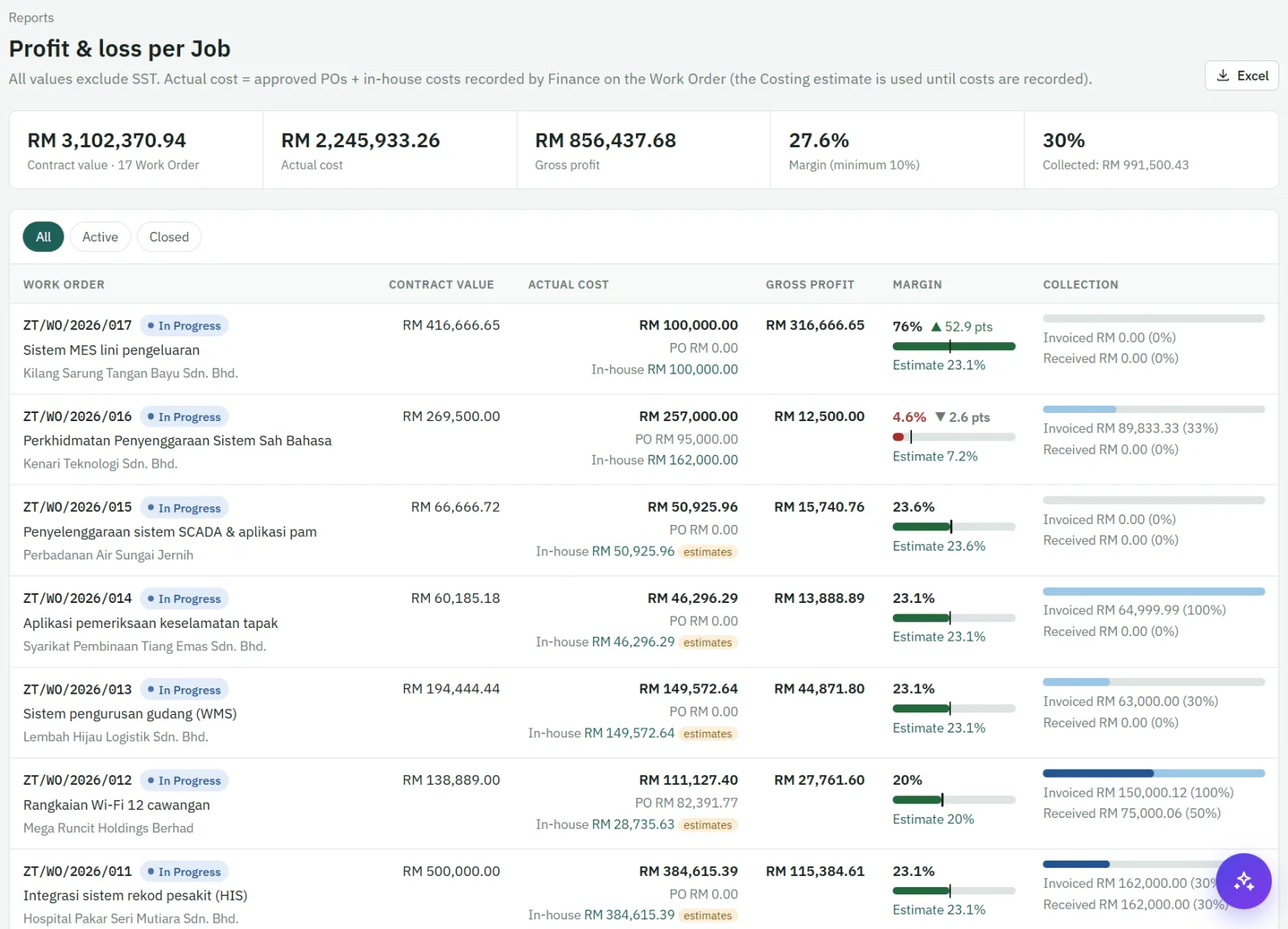
| Profit & loss | Revenue, cost, profit and margin per work order — actual versus estimated. |
| Aging | How much each customer owes, grouped by how long it has been outstanding. |
| Pipeline | Open RFx and their estimated value by status. |
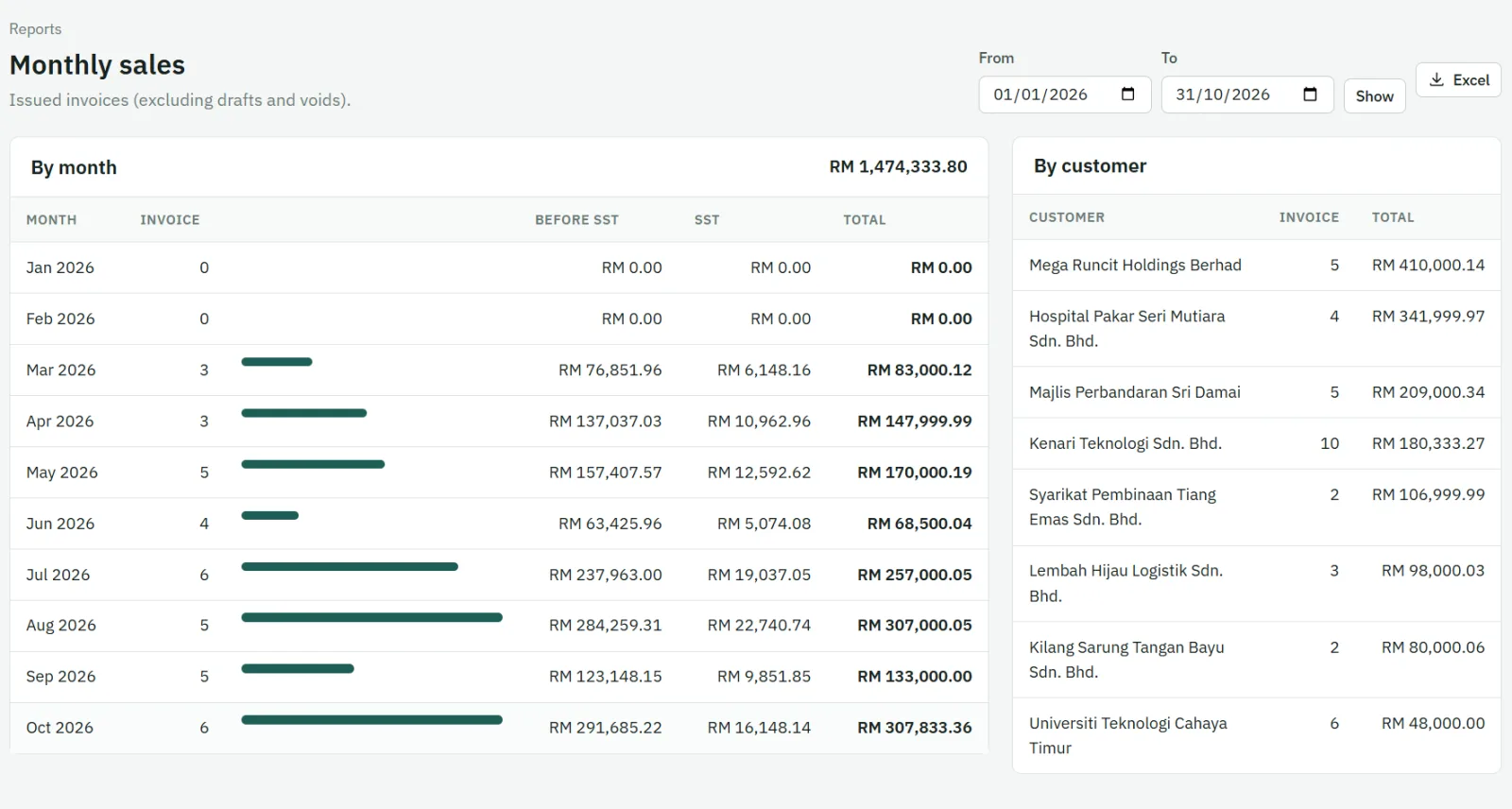
| Sales | Invoiced sales over a period. |
| SST | SST charged on invoices for your SST return. |
| Yearly cash flow | Net flow across the year. |
Export produces CSV files for import into your accounting software. Zeta ERP does not keep a general ledger — your accounting software remains the book of record.
AI assistant — Ask your data
Ask questions about your ERP data in plain English or Bahasa Melayu, and get the answer as a table. Available to users with the Reports role.
Where to find it
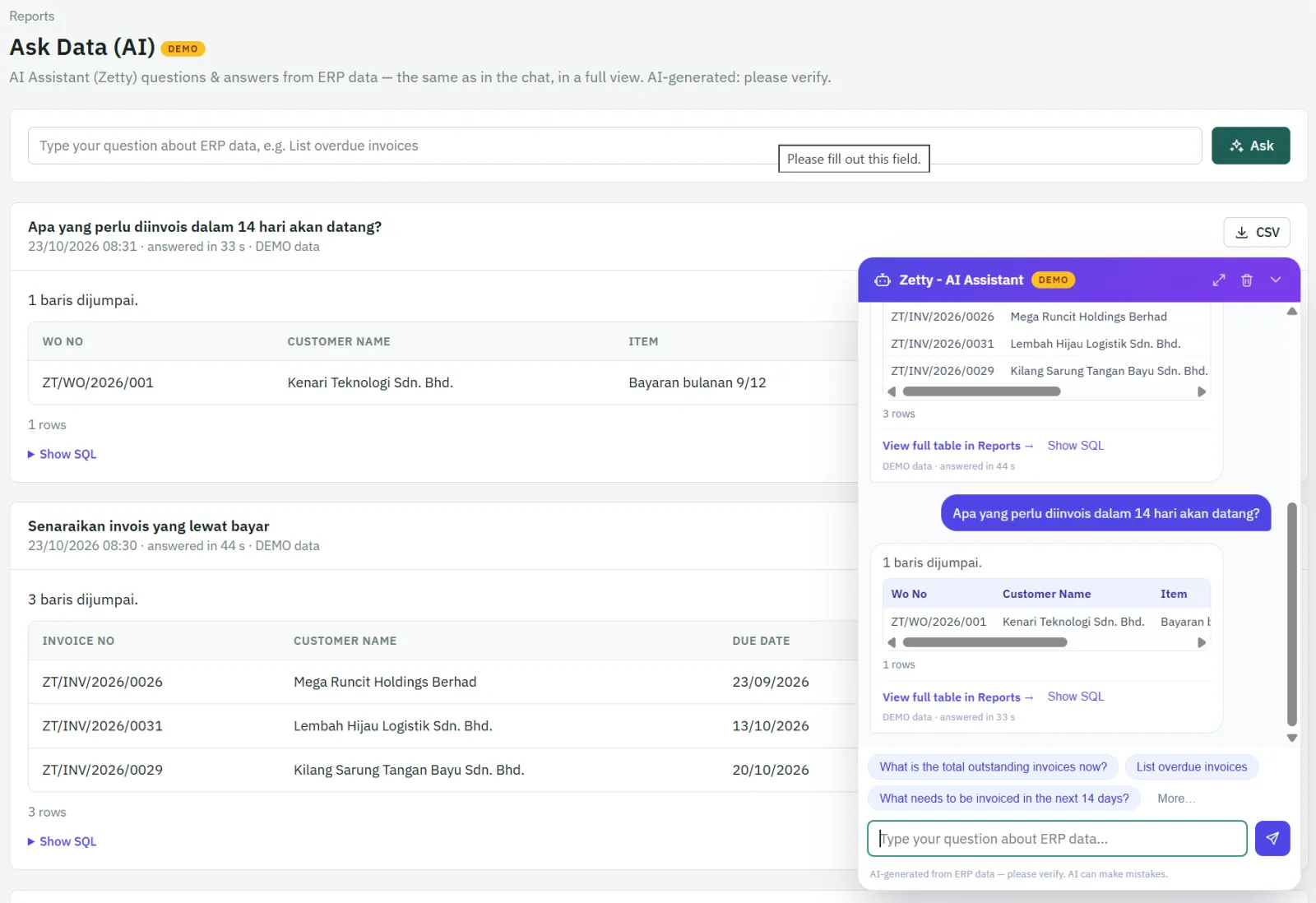
- Floating AI assistant — the chat button on every page. Suggested questions appear when you open it; More… shows additional examples.
- Reports → Ask your data (AI) — the full-page version, where large results are shown in full and can be downloaded as CSV.
How it works
- You type a question, for example "Which invoices are paid late?".
- Zeta AI writes a database query (SQL) for it. You will see the progress: generating the query → checking data access → running the query → building the result table.
- Before it runs, safety checks allow only read-only queries on approved reporting data, limited to what you are allowed to see.
- The answer appears as a table — just your question and the answer. Long answers in the chat show the first rows; use See the full table in Reports for the rest.
If something goes wrong
- Your session has expired — if you were signed out while away, the assistant stops and shows Sign in again. After signing in you return to the same page and your question is filled in again, ready to send.
- The AI server is busy or restarting, or the AI took too long (no answer within about 5 minutes) — click Try again. Shorter, more specific questions are answered faster.
Example questions
| You ask | What you get |
|---|---|
| "How much is outstanding on invoices right now?" | Total outstanding balance and number of unpaid invoices. |
| "Which invoices are paid late?" | Overdue invoices with customer, due date, days overdue and balance — worst first. |
| "Top 5 customers with the biggest outstanding balance" | The five customers who owe the most. |
| "How much did we receive this month?" | Total receipts this month and number of receipts. |
| "What needs to be invoiced in the next 14 days?" | Invoice schedule lines due soon that are not yet invoiced. |
| "Which work orders are the most profitable?" | Top work orders by profit, with margin %. |
| "Work orders with a margin below 15%" | Low-margin jobs, actual versus estimated margin. |
| "Why did we lose tenders this year?" | Lost RFx with the reason, the winning competitor and how much cheaper they were. |
| "Which vendor offers the cheapest laptop?" | Unit prices per vendor from your purchase orders. |
What it will not answer
- Questions about users, logins, staff salaries or passwords — that data is not available to the assistant.
- General questions such as "What is SST?". For "How do I…?" questions about using Zeta ERP, the assistant points you to the right page of this manual.
- It never changes data: it cannot create, edit or delete records.