From RFx to cash
Customers & vendors
Customers and vendors are kept in one register — Customers & Vendors. One company can be ticked as both a customer and a vendor; you never register it twice.
- Company details — name, registration number, TIN, SST number and a structured address.
- Several PICs (persons in charge) with phone, email and department. Mark one as the main PIC for sending documents.
- Commercial defaults — payment terms (used to calculate invoice due dates) and, for vendors, bank details for payment reference.
- Attachments such as registration certificates.
The list
Two cards at the top switch between Customers (opened first) and Vendors; View all shows both together.
- Most active first — customers are sorted by the value invoiced in the last 12 months, with a Not yet paid column; vendors by the value of approved POs in the last 12 months. Click a column heading to sort another way.
- Your favourites (star) are always at the top.
- Each company has a coloured letter icon — its short form in brackets, such as (DBP), or an acronym at the start of the name, such as TNB; otherwise the first letters of the first two words. Words like Sdn, Bhd and Berhad, and brackets such as (M) or (Asia), are ignored.
The customer page — everything in one place
Open a customer to see its key figures at the top: invoiced and received in the last 12 months, not yet paid, overdue (in red) and active work orders. Below them, tabs list all of the customer's RFx, quotations, work orders, invoices, DOs and payments, each with its status — the latest 25, with a link to the full list when there are more. Company details, addresses and PICs follow underneath.
RFx & bid decision
Register every request for quotation or tender you receive as an RFx — even ones you may not pursue. The list becomes your sales pipeline.
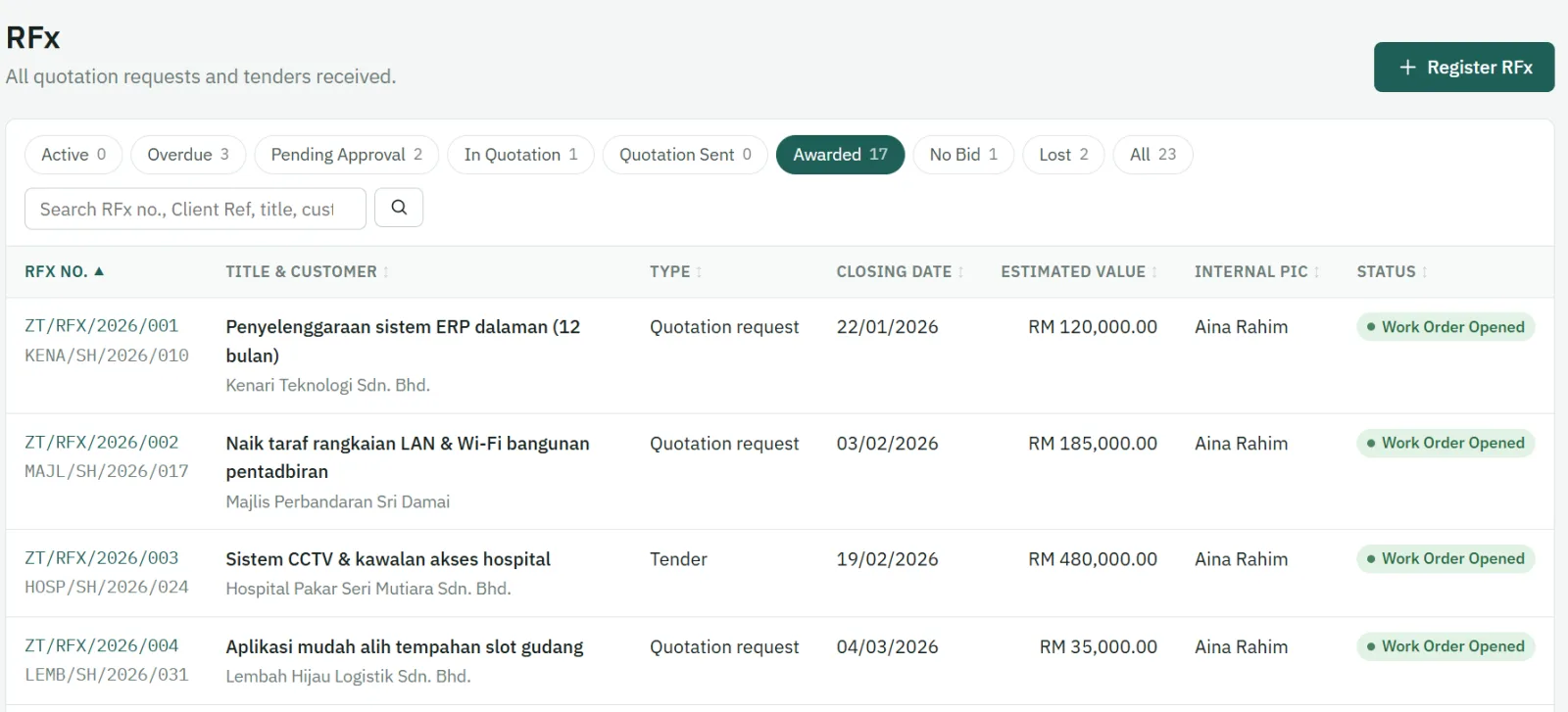
The list opens on Ongoing — RFx that are still moving: active ones, awarded ones, and those whose work order is still running (not closed or cancelled). Your starred RFx come first, then active RFx by nearest closing date, then awarded RFx (newest first). Once a work order has been opened, the status badge shows the work order's current status, for example WO Closed. The filters beside it show Active, Awarded, Overdue and each status on its own; All shows everything. Searching from the list always searches all RFx.
Creating an RFx
- Choose the type (quotation, tender or other), customer and customer PIC. The RFx number is generated automatically.
- Enter the title, closing date, your company PIC and the approver who decides whether to bid.
- Optionally enter an estimated value (used in the pipeline report) and attach the customer's documents.
- Click Submit for decision.
Bid / No-Bid
The approver is notified and decides:
- Bid — the RFx moves to In Quotation and Procurement can start the costing sheet.
- No-Bid — the approver must choose a reason (out of scope, price not competitive, capacity full, not enough time, other). The RFx is closed but stays in the records for reporting.
Your admin can set a Sales bid limit: RFx with an estimated value up to that amount may be decided by Sales without an approver. When the limit is 0, every RFx needs an approver.
RFx statuses
| Status | Meaning |
|---|---|
| Draft | Sales is still filling in the RFx. |
| Pending decision | Submitted to the approver for Bid / No-Bid. |
| No bid | Not pursued (final). |
| In quotation | Approved to bid; costing and quotation in progress. |
| Quotation sent | Set automatically when the approved quotation is marked as sent. |
| Awarded | The customer chose you. |
| Lost | The customer chose someone else (final, with a reason). Optionally record the winning competitor and their winning price — used to answer "why did we lose?" and "who beats us most often?". |
| Cancelled | The customer cancelled the request (final). |
| Work order opened | Set automatically when the work order is created. |
Costing sheet & supplier quotations
Costing sheet
Each RFx being quoted has one costing sheet. For every item enter the quantity, unit, cost per unit and markup %, and choose its source — in-house or a supplier.
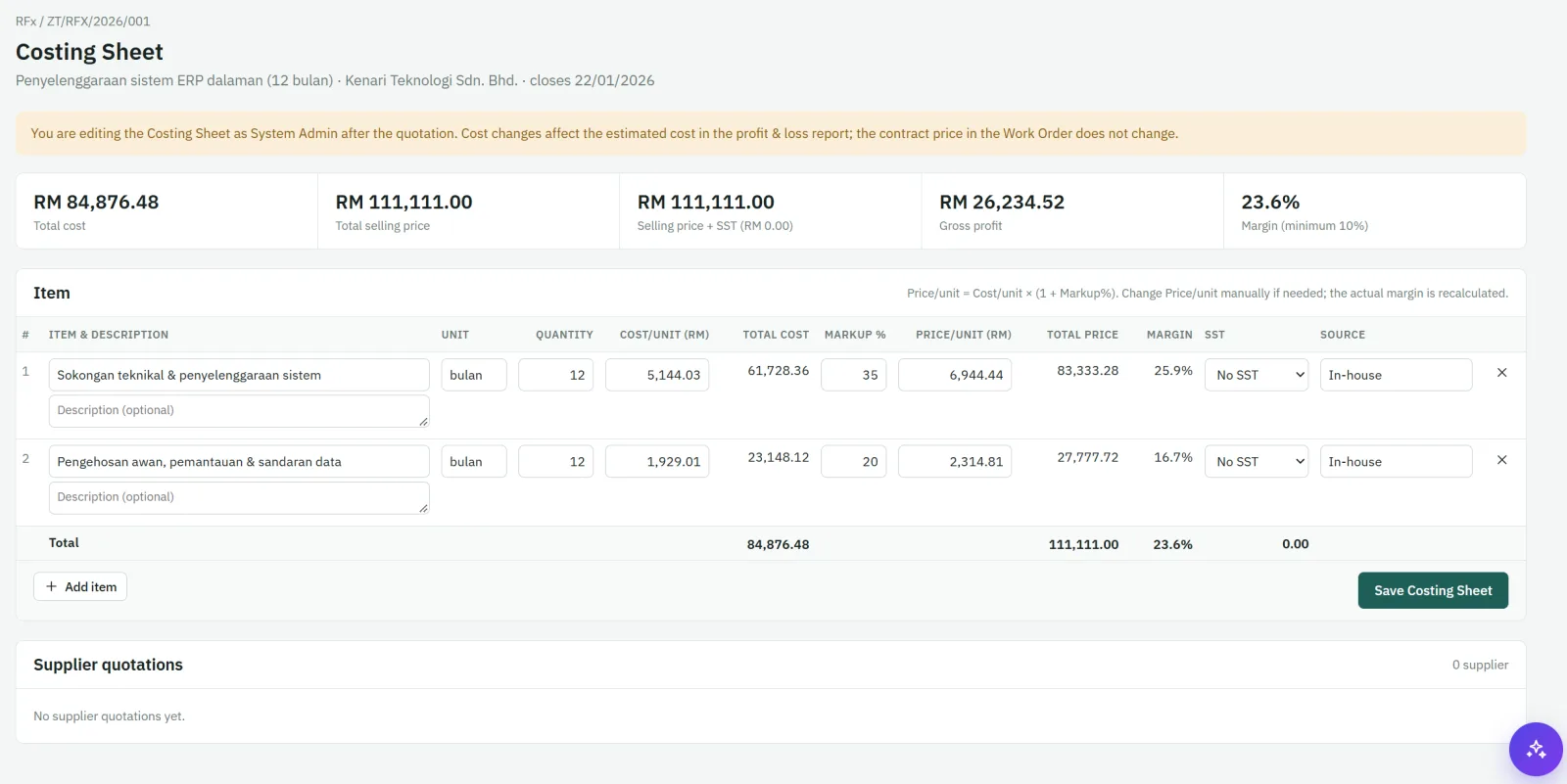
- Total cost = quantity × cost per unit
- Unit price = cost per unit × (1 + markup % ÷ 100)
- Line total = quantity × unit price
You may type a unit price manually. The sheet then shows the real margin and warns you if it is negative or below the minimum margin set in Parameter Setup. The summary at the top shows total cost, total selling price, gross profit and margin %.
Items tagged to a supplier are later used to create purchase orders for that supplier.
Supplier quotations
Drag and drop the quotations you receive from suppliers (PDF, Excel or images) onto the job. Approvers can open them as reference when approving purchase orders.
Quotations
Create a quotation from an RFx that is In quotation. Items, quantities and unit prices come straight from the costing sheet.
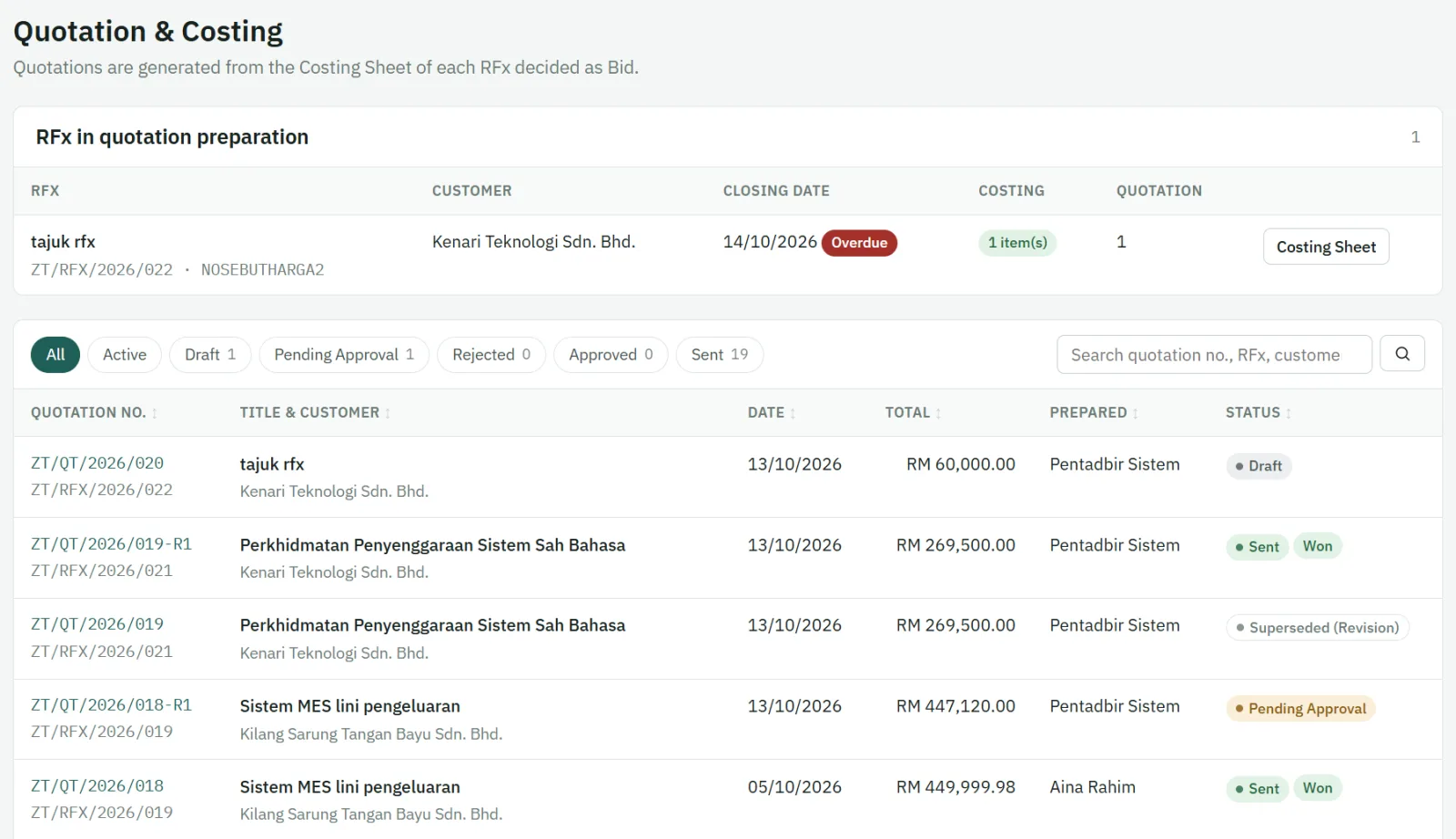
- Add discount (if any), SST per item, validity date and payment terms. Default notes are filled in from Parameter Setup and can be edited.
- Submit for approval. Once approved, the quotation is locked; download the PDF or email it to the customer's PIC and mark it as sent.
- Need to change price or scope? Create a revision (for example …-R1). The previous version is kept and marked Superseded.
- When the RFx is Awarded, choose which quotation version the customer accepted — the work order is linked to it.
Statuses: Draft → Pending approval → Approved → Sent (or Rejected, Superseded, Cancelled).
Work orders & actual costs
A work order can only be opened for an Awarded RFx. Record the customer's PO number, PO date, the customer PO file and the delivery date.
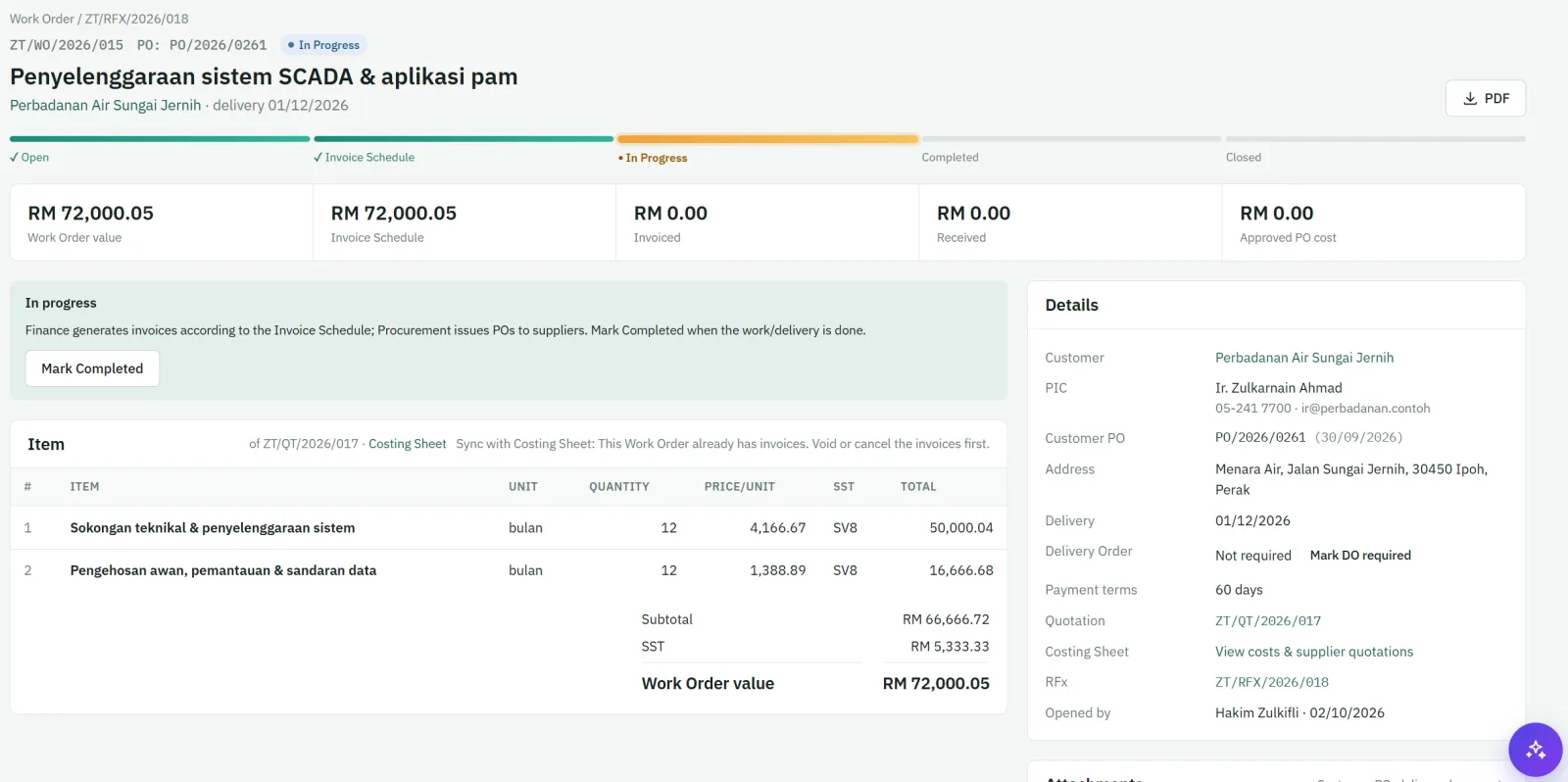
- Select awarded items — customers sometimes award only part of the quotation. Only the selected items count towards the contract value.
- SST is calculated from the tax codes; subtotal and total are automatic.
- Actual costs — Finance records the real in-house costs of the job, so the profit report shows actual margin next to the estimated margin.
- Align with costing — if the awarded scope differs from the costing, the costing can be aligned to the work order.
- Mark whether a delivery order is required, and mark the work order Completed when the work is done.
Statuses: Open → In progress → Completed → Closed (or Cancelled).
The work order list opens on Active, with In progress right beside it. Star the work orders you follow closely — they stay at the top of the list and in the star menu.
Purchase orders
From the work order, select the costing items tagged to suppliers. Zeta ERP groups them and creates one PO per supplier.
- Fill in delivery address, delivery mode and terms, contact person and expected date. Default PO notes come from Parameter Setup.
- Every PO needs approval before it can be sent. Approvers can view the costing and the supplier's quotation.
- If a PO price is higher than the cost in the costing sheet, a cost warning is shown to the preparer and the approver.
- After approval, download the PDF or email it to the supplier and mark it as sent.
Statuses: Draft → Pending approval → Approved → Sent (or Rejected, Cancelled). Payments made to the supplier are tracked under Supplier payments.
Delivery orders
A delivery order (DO) records goods or services delivered to the customer. It is created from an invoice, and the work order shows whether a DO is still required.
- Edit the DO details, then download the DO PDF.
- Mark it Sent when it leaves, and Received when the customer acknowledges it.
Invoice schedule & invoices
Invoice schedule
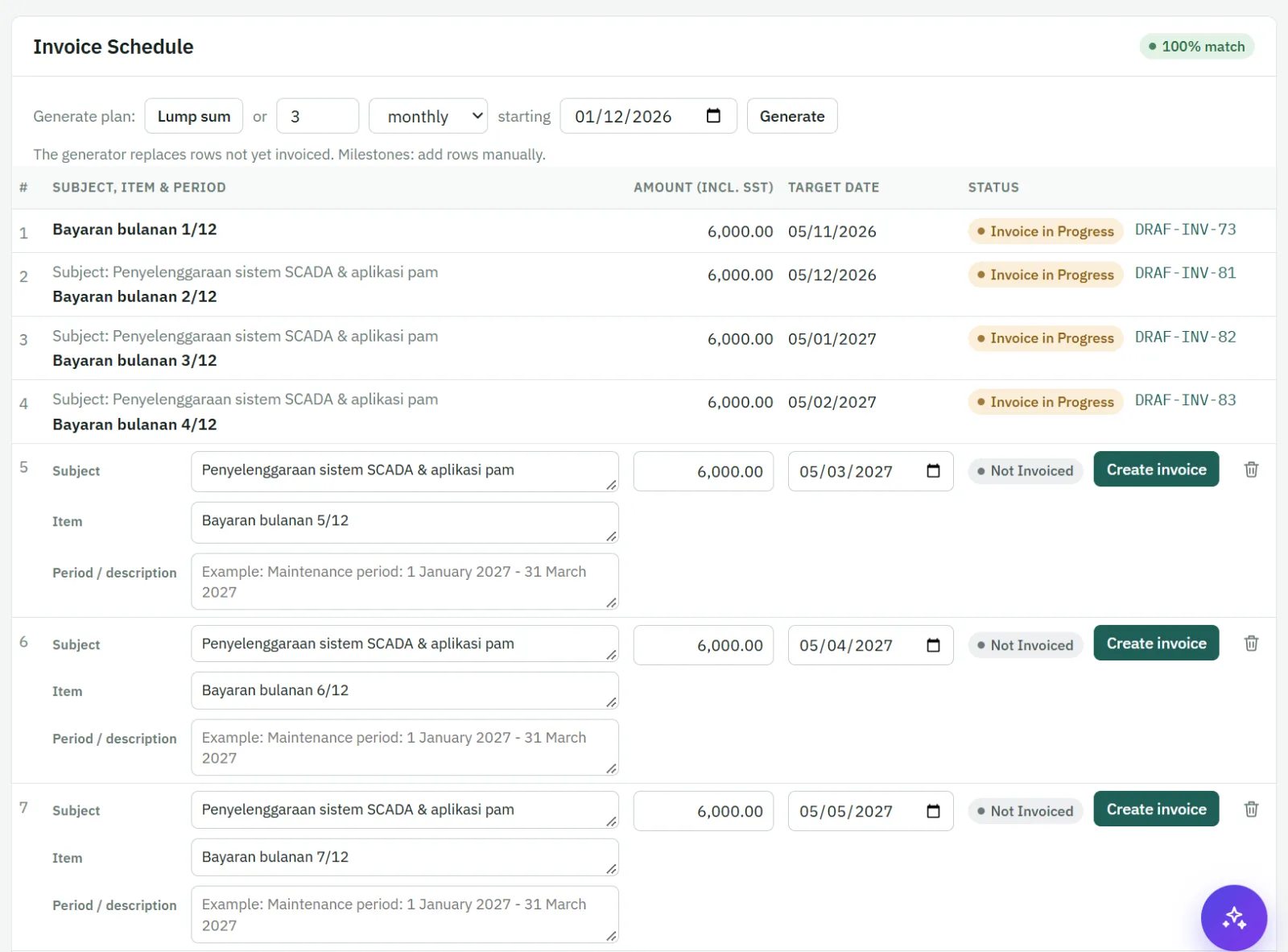
Each work order has an invoice schedule — the billing plan. Split the contract monthly, quarterly, yearly, by milestone or as one lump sum, with a title, amount and target date for each line.
- Under Generate plan, choose the type: Lump sum, Monthly, Quarterly or Yearly.
- For a lump sum, pick the date. For instalments, enter the number of payments and the start date.
- Press Generate. The amount is split evenly (any cents go to the last line). Adjust titles, amounts or dates if needed, then Save.
For milestones, add the lines yourself instead. Once a plan exists the generator is hidden behind Regenerate plan — use it only to rebuild the lines that have not been invoiced yet; invoiced lines are never touched. When everything has been invoiced, the generator disappears.
Creating an invoice
- On a schedule line, click Create Invoice. Customer, PIC and the item are filled in from the work order.
- The due date is calculated from the customer's payment terms; SST is applied per item. Your SST number and bank details are printed on the invoice.
- Need more than one item, or a different amount? While the invoice is still Draft, click Edit — see Adding items to an invoice below.
- Submit for approval. After approval the invoice is Issued, locked, and can be downloaded as PDF or emailed to the customer's PIC.
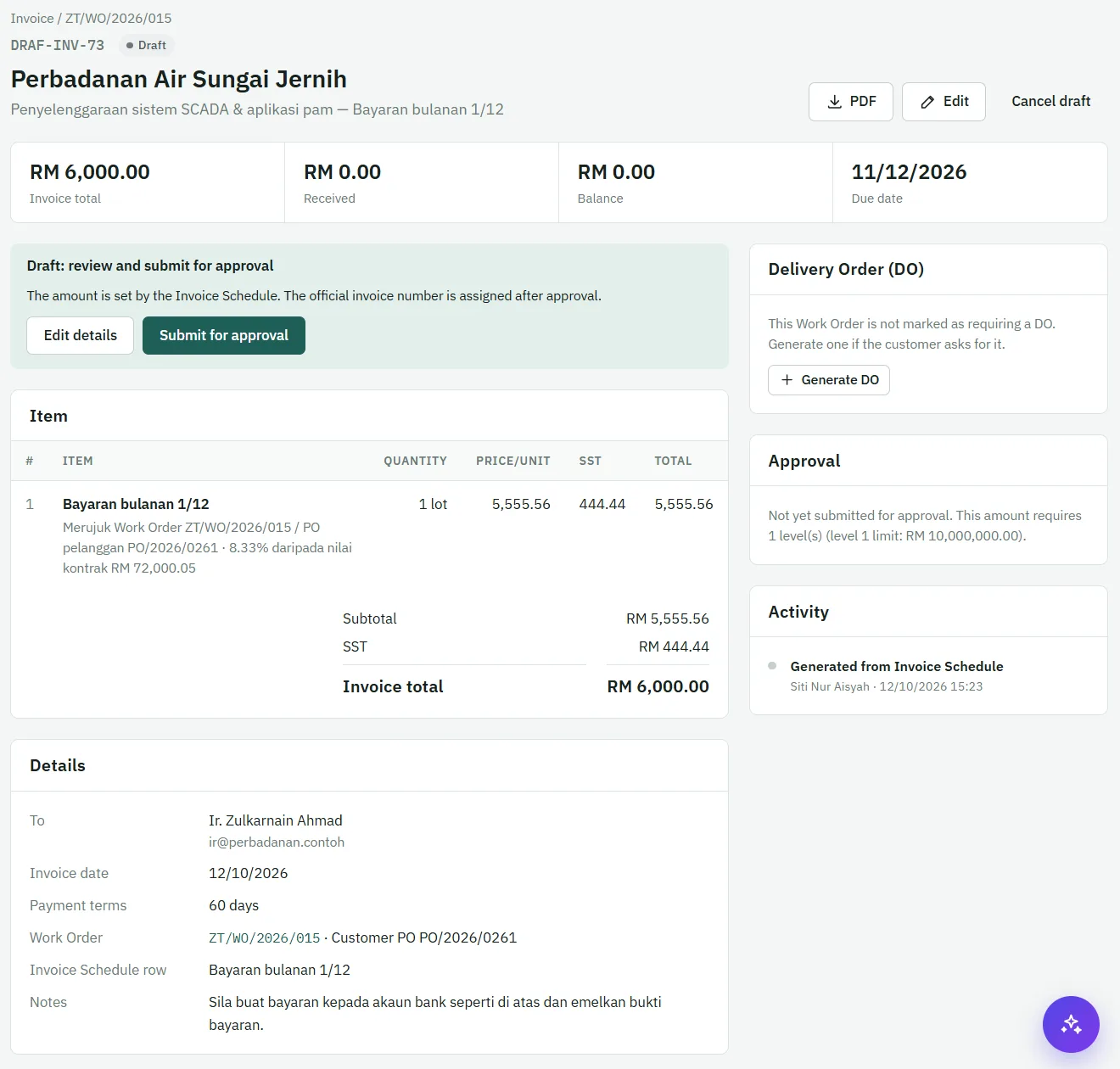
Statuses: Draft → Pending approval → Issued → Partially paid → Paid (or Rejected, Void). Payment statuses update automatically from receipts.
Adding items to an invoice
An invoice created from the schedule starts with one item — the schedule line (for example "Monthly payment 1/12"), referring to the work order and customer PO. To bill more than one item:
- Open the invoice and click Edit.
- In the item list, change the item, quantity, price or SST code, or click Add item for each extra line.
- Save. The subtotal, SST and invoice total are recalculated.
When you can do this: only while the invoice is Draft, or after it has been Rejected by the approver. Once it is submitted for approval or issued it is locked — to change an issued invoice, void it (if no payment has been received) and create it again.
An invoice must always keep at least one item.
If the invoice total changes
If your edits make the invoice total different from the amount on its schedule line:
- The schedule line follows the invoice. Its amount is updated automatically to the new invoice total, and the change is recorded in the audit log.
- The schedule may no longer add up to 100% of the work order value. Adjust the remaining schedule lines so the total matches again — otherwise the work order keeps showing the warning, and the cash flow projection uses the changed amounts.
- The approval level follows the new total. A higher amount may need a higher approval level.
- The contract summary on the invoice shows the work order value, what was invoiced before, this invoice and the remaining balance, so you can see the effect before submitting. You can also hide it from the PDF — see Scope of work & contract summary.
Scope of work & contract summary on the PDF
When an invoice bills only part of a work order (for example one month of twelve), its PDF can show a box with the scope of work — the work order's items — and a contract summary: contract value, amount invoiced before, this invoice and the remaining balance.
- It is shown by default. To hide it, open the invoice, click Edit and untick Show "Scope of work & Contract summary" on the PDF, then save.
- Hide it when the totals could confuse the customer — for example when you have added items or changed amounts, so the final contract total is no longer the original work order value.
- Like other edits, it can only be changed while the invoice is Draft or Rejected. It only affects the PDF; the invoice amounts are not changed.
- An invoice that bills the whole contract at once never shows the box.
Receipts & supplier payments
Receipts (customer payments)
- Under Payments, record the date, method, bank reference, amount and which invoices it settles.
- A payment can be partial, or cover several invoices at once.
- Invoices and their schedule lines become Partially paid or Paid automatically.
- Download an official receipt PDF if needed. A receipt recorded in error can be voided with a reason.
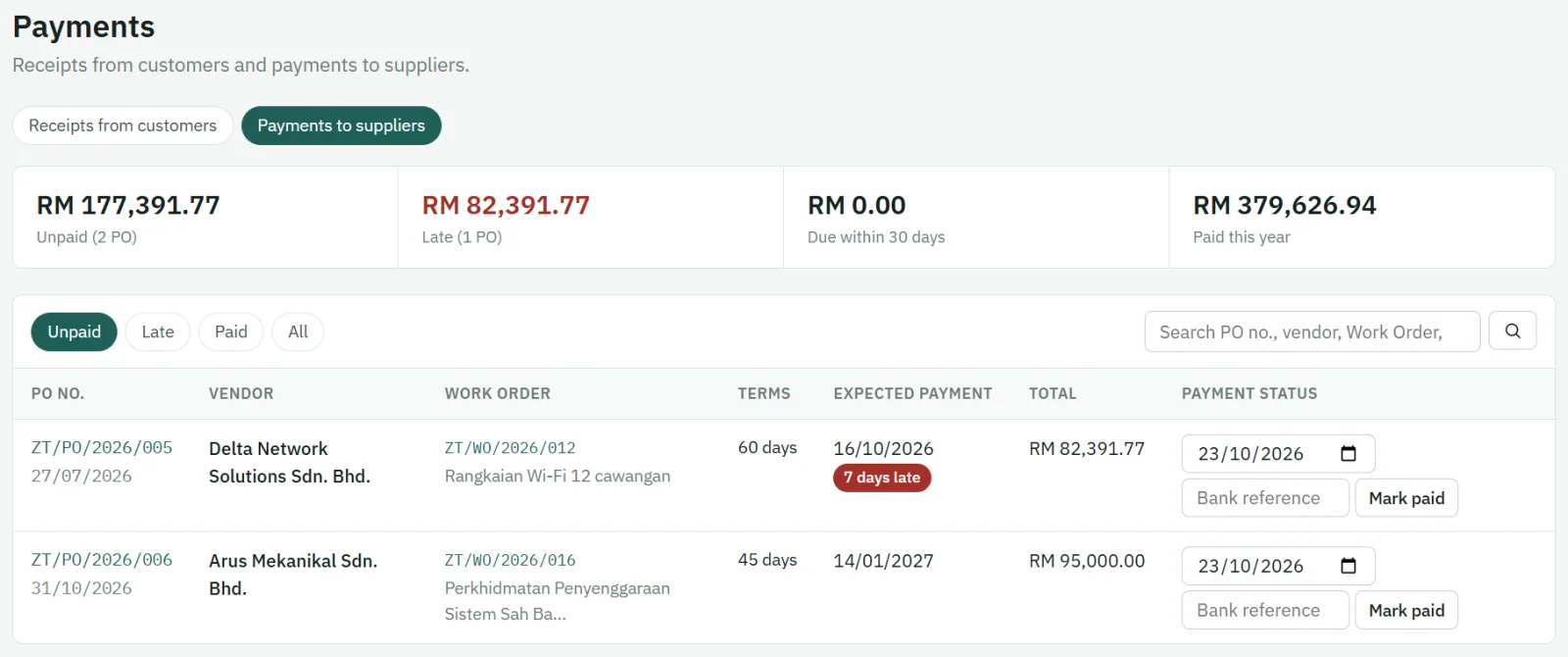
Supplier payments
Under Payments to suppliers, record what you have paid against vendor POs. The Dashboard reminds you of vendor POs not yet paid.
How approvals work
Quotations, purchase orders and invoices go through approval before they leave the company.
- Submit sends the document to the approver(s); they are notified on the Dashboard and by email.
- Approval levels depend on the amount and on the limits set in Parameter Setup. An approver can also have a personal approval limit; documents above it go to the next level.
- Approve locks the document and records who approved it and when. Reject returns it to the preparer to be corrected, with your comment.
- Approved documents can carry the approver's digital signature, or a "This document is computer generated" line — chosen in Parameter Setup.